

How notifications work
Notifications use topics to give you fine-grained control over which events reach which destinations. You can configure each topic to receive specific event types and route notifications to one or more destinations.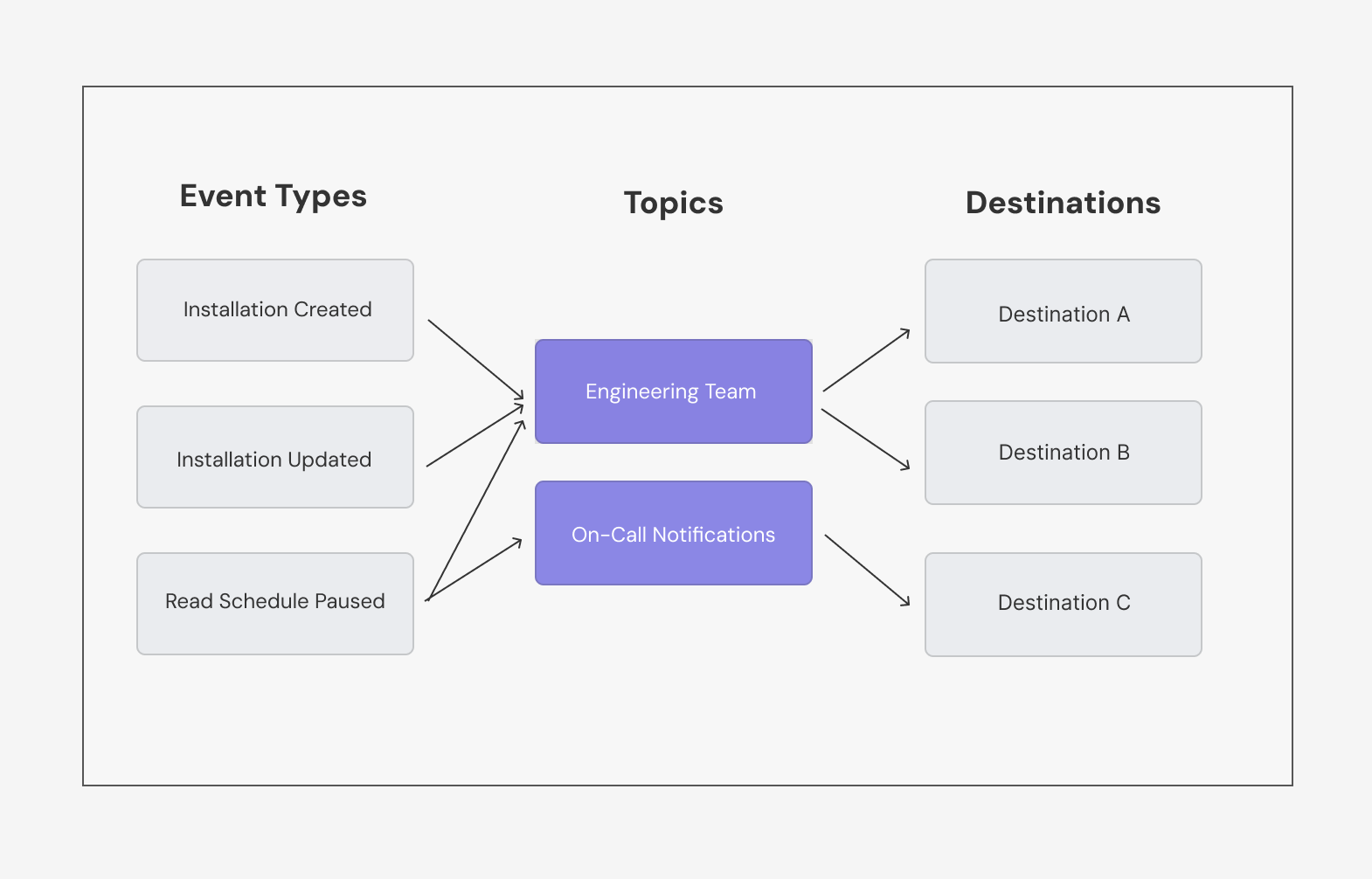
Notifications Diagram
Available events
Ampersand supports the following notification event types: Installation lifecycleinstallation.created: Fires when a customer installs your integration to their SaaS instance. With the prebuilt UI and always-enabled objects, this happens as soon as the customer connects.installation.updated: Fires when a customer modifies their integration configuration (e.g., changes field mappings)installation.deleted: Fires when a customer uninstalls your integration from their SaaS instance
read.backfill.done: Fires when historical data sync completes so you know backfill data is ready to processread.backfill.error: Fires when a historical data sync (backfill) failsread.schedule.paused: Fires when a scheduled data sync is paused, often due to authentication issues or other errorsread.triggered.done: Fires when an on-demand triggered read completes successfullyread.triggered.error: Fires when an on-demand triggered read fails
write.async.done: Fires when an asynchronous write operation completes, indicating success or failure and which records were written or had errors
subscribe.create.success: Fires when a subscription becomes active. For providers that Ampersand subscribes to programmatically, this is when the subscribe action is set up successfully; for providers whose webhooks are configured manually in the provider’s UI, this is when the first event is deliveredsubscribe.update.success: Fires when an update to an existing subscribe action completes successfullysubscribe.delete.success: Fires when a subscribe action is removed successfully, including tearing down the subscription on the provider’s sidesubscribe.create.error: Fires when Ampersand fails to set up a subscribe action for an installationsubscribe.update.error: Fires when Ampersand fails to update an existing subscribe action for an installationsubscribe.delete.error: Fires when a subscribe action is removed but Ampersand could not tear down the subscription on the provider’s side, so it may still be active and continue to consume provider resources (for example, event or subscription quota). You may need to remove it manually in the provider
connection.created: Fires when a new OAuth connection is established with a SaaS providerconnection.refreshed: Fires when Ampersand automatically refreshes a connection’s OAuth access token as it nears expiry, using the connection’s refresh token. This happens with no user involvement and keeps the connection activeconnection.updated: Fires when an existing connection is updated, either when a user re-authenticates (for example, reconnecting to resolve an errored connection) or when the connection’s credentials or metadata are changed via the update connection APIconnection.deleted: Fires when a connection is deleted, such as through the dashboard or the delete connection APIconnection.error: Fires when there’s an error with an OAuth connection, such as authentication failures or token refresh issues
destination.webhook.disabled: Fires when a webhook destination endpoint is disabled. This can happen automatically after repeated failed delivery attempts.destination.delivery.error: Fires when Ampersand could not deliver read or subscribe results to a destination after all retry attempts were exhausted. This applies to every destination type (webhooks, Kinesis, S3, and other sinks). The payload identifies the destination, the installation and object whose data could not be delivered, and the error.
Setting up notifications
There are two ways to set up notifications:- Using the Dashboard: Visual interface for quick setup
- Using the API: Programmatic setup for automation and integration
Set up via Dashboard
-
Create destinations
- Go to Destinations
- Click New Destination and configure:
- Name: A descriptive name (e.g., “production-alerts”)
- Type: Choose webhook, Slack, Kinesis, or Amazon S3
- Configuration: Provide the endpoint URL or stream details
- Click Create Destination
-
Create topics
- Go to Notifications
- Click New Topic
- Configure your topic:
- Name: A descriptive name (e.g., “installation-events”)
- Event types: Select the events this topic should receive
- Destinations: Select which destinations should receive notifications
- Click Create Topic
Set up via API
When using the API, you need to create routes explicitly to connect events to topics and topics to destinations. The dashboard handles this automatically when you create a topic. See the API Reference for complete endpoint documentation.1. Create a destination
1. Create a destination
2. Create a topic
2. Create a topic
3. Create notification-event-topic routes
3. Create notification-event-topic routes
Notification-Event-Topic Routes connect specific event types to topics. This determines which events are sent to each topic.
4. Create topic-destination routes
4. Create topic-destination routes
Topic-Destination Routes connect topics to destinations. This determines which destinations receive notifications for each topic.