

What’s supported
Supported actions
This connector supports:- Read Actions, including full historic backfill and incremental read.
- Write Actions (create/update).
- Proxy Actions, using the base URL
https://api.getresponse.com. - Subscribe Actions are not currently supported.
Supported objects
| Object | Read | Write | Subscribe |
|---|---|---|---|
| contacts | |||
| campaigns | |||
| tags | |||
| newsletters | |||
| autoresponders | |||
| forms | |||
| landing-pages | |||
| custom-events | |||
| webinars |
Notes and limitations
- Write support:
contactsandcampaignssupport create and update. Fortags, create is supported; the update operation is deprecated by GetResponse. - contacts: Must be associated with an existing campaign on creation (a
campaignIdis required). - Incremental read (implementation): For
contacts, the connector uses GetResponse’squery[createdOn][from/to]filters. For all other readable objects, it uses each record’screatedOnfield to determine what changed since the last read.
Example integration
To define an integration for GetResponse, use a manifest file (amp.yaml). For a complete example, visit our samples repo on Github.
Before you get started
To integrate GetResponse with Ampersand, you will need a GetResponse account. Once your account is created, you’ll need to create an app in GetResponse and obtain the following credentials:- Client ID
- Client Secret
Create a GetResponse account
Here’s how to sign up for a GetResponse account:- Go to the GetResponse sign up page.
- Sign up using your preferred method.
Create an app in GetResponse
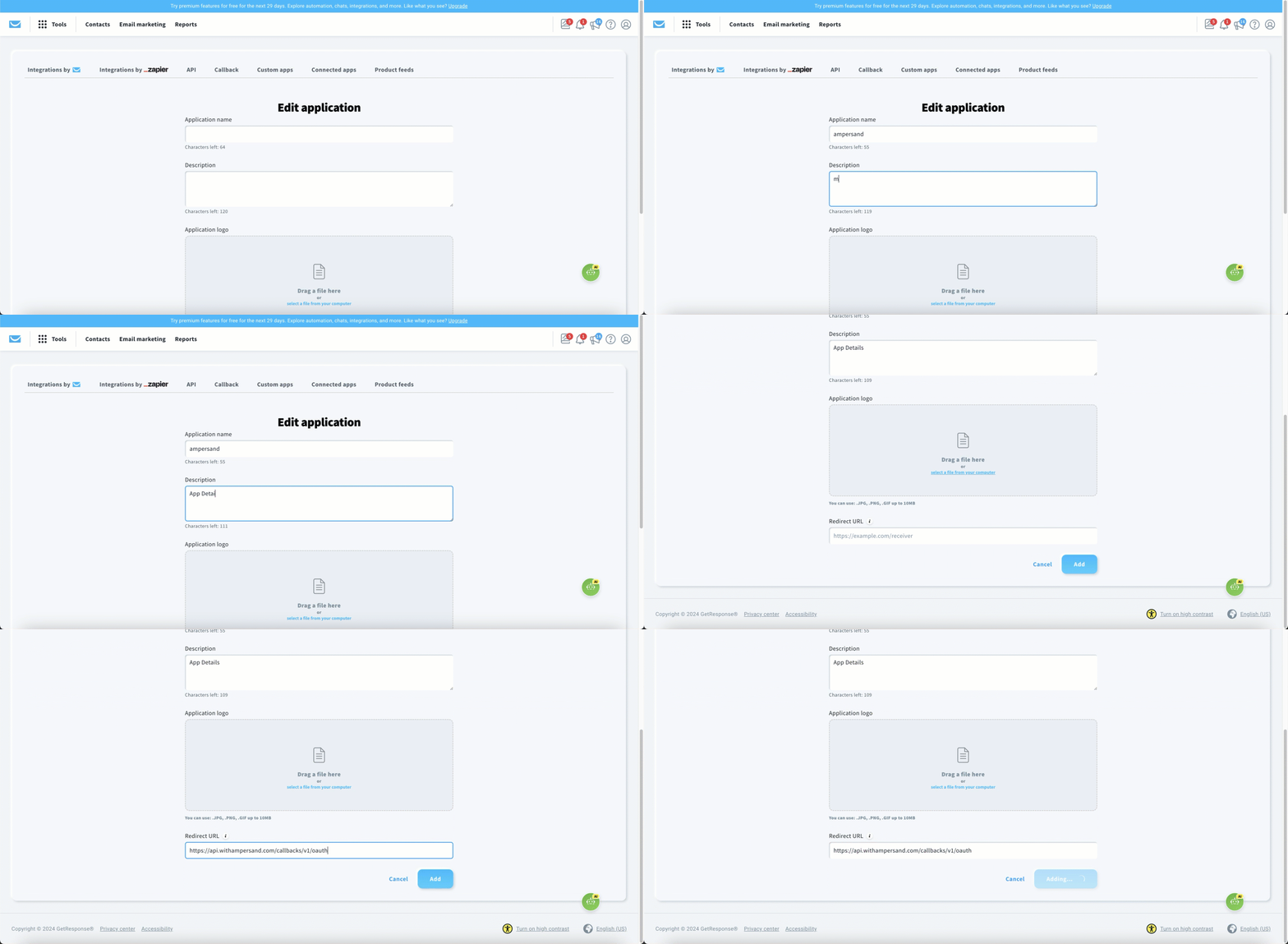
Follow the steps below to create an OAuth app in GetResponse and obtain your credentials:- Log in to your GetResponse account.
- Navigate to Tools > Integrations and API and click Custom Apps.
- Click the Add new app button.
-
Enter the following details for your app:
- Application name: Name for your app.
- Description: Description of what your app does.
- Redirect URL: Enter the Ampersand redirect URL:
https://api.withampersand.com/callbacks/v1/oauth
- Click Add.
Add your GetResponse app to Ampersand
- Log in to your Ampersand Dashboard.
-
Select the project where you want to create a GetResponse integration.

- Select Provider apps.
- Select GetResponse from the Provider list.
-
Enter the Client ID and Client Secret obtained in the previous step.
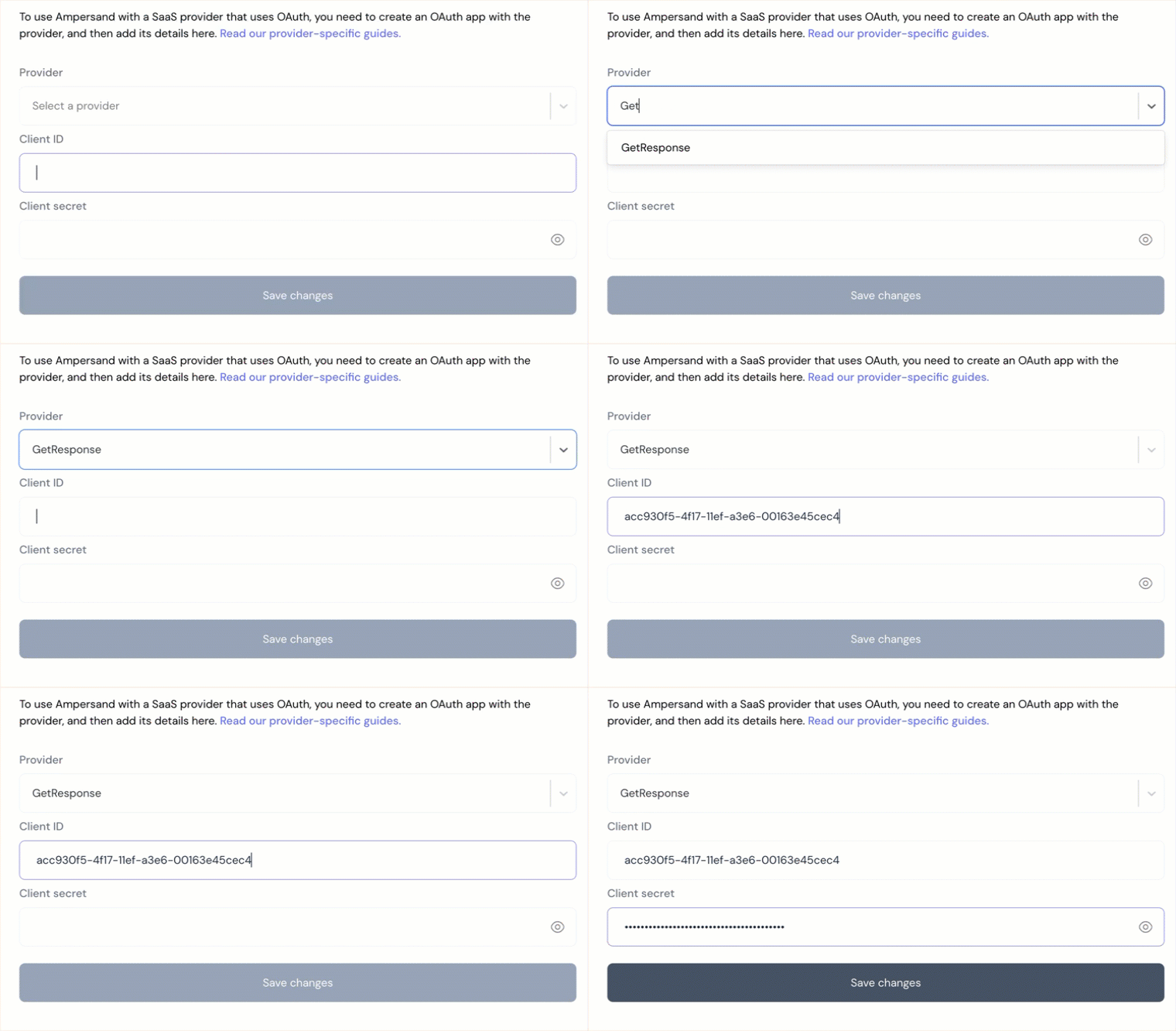
- Click Save Changes.
Using the connector
This connector uses OAuth 2.0 (Authorization Code), which means that you must set up a Provider App before getting started. To start integrating with GetResponse:- Create a manifest file; see Example integration.
- Deploy it using the amp CLI.
- If you are using Read Actions, create a destination.
- Embed the InstallIntegration UI component. The UI component will prompt your customers to authorize their GetResponse account.
- Start using the connector!
- If your integration has Read Actions, you’ll start getting webhook messages.
- If your integration has Write Actions, you can start making API calls to our Write API.
- If your integration has Proxy Actions, you can start making Proxy API calls.