

Checklist before installing
Complete these checks before you install or connect the integration. If any of them fail, the connection will not work.1. Confirm your edition has API access
Your Salesforce edition must include API access. Without it, the integration cannot connect. Check Salesforce’s API access by edition. If your edition does not include API access, contact your Salesforce account representative to upgrade.2. Know which app type you’re installing
Ask the developer whether this integration uses an External Client App or a Connected App. Use the matching tab in the sections below.Glossary
- License — Purchased from Salesforce; sets the maximum permissions a user can receive. Which license you need depends on who connects — see Choose credentials and grant access.
- Profile — Controls object, field, and feature access. Each user has exactly one profile (standard or custom), tied to one license. System Administrator is a profile, not a license.
- Permission set — Extra permissions assigned on top of a profile. Users can have multiple permission sets; each set is tied to a license.
Setting up the integration
- External Client App
- Connected App
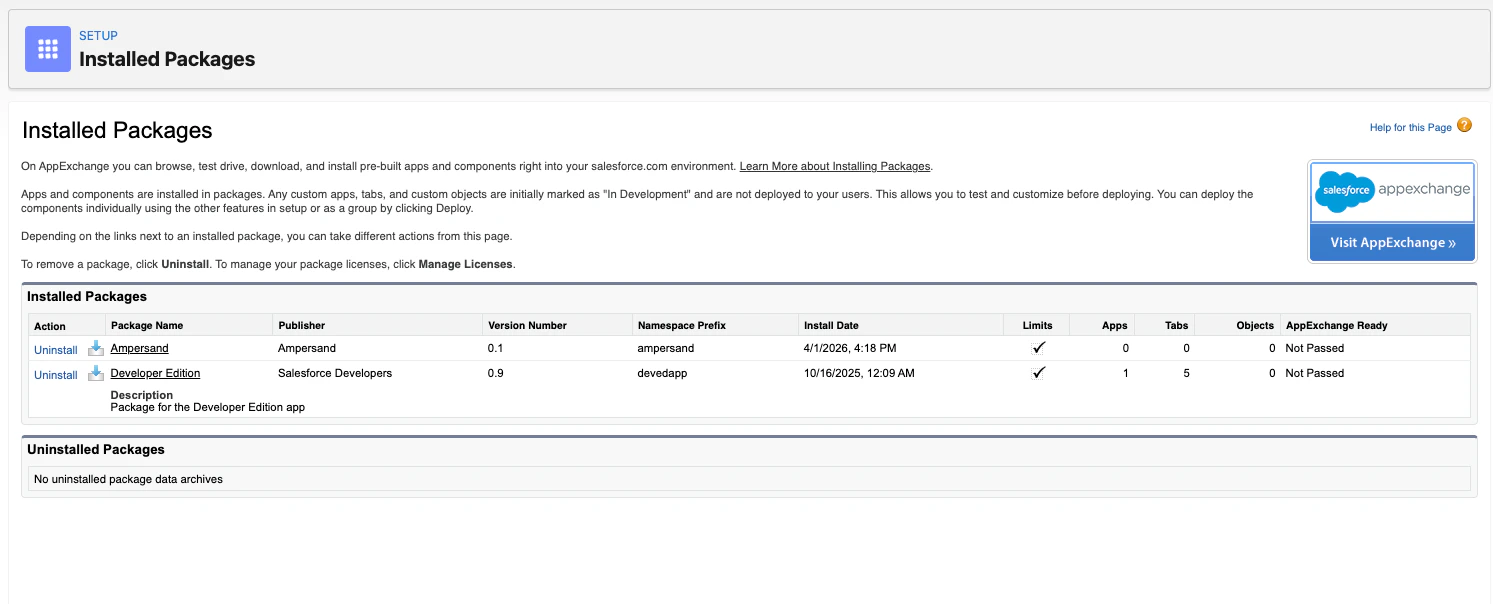
Install the package
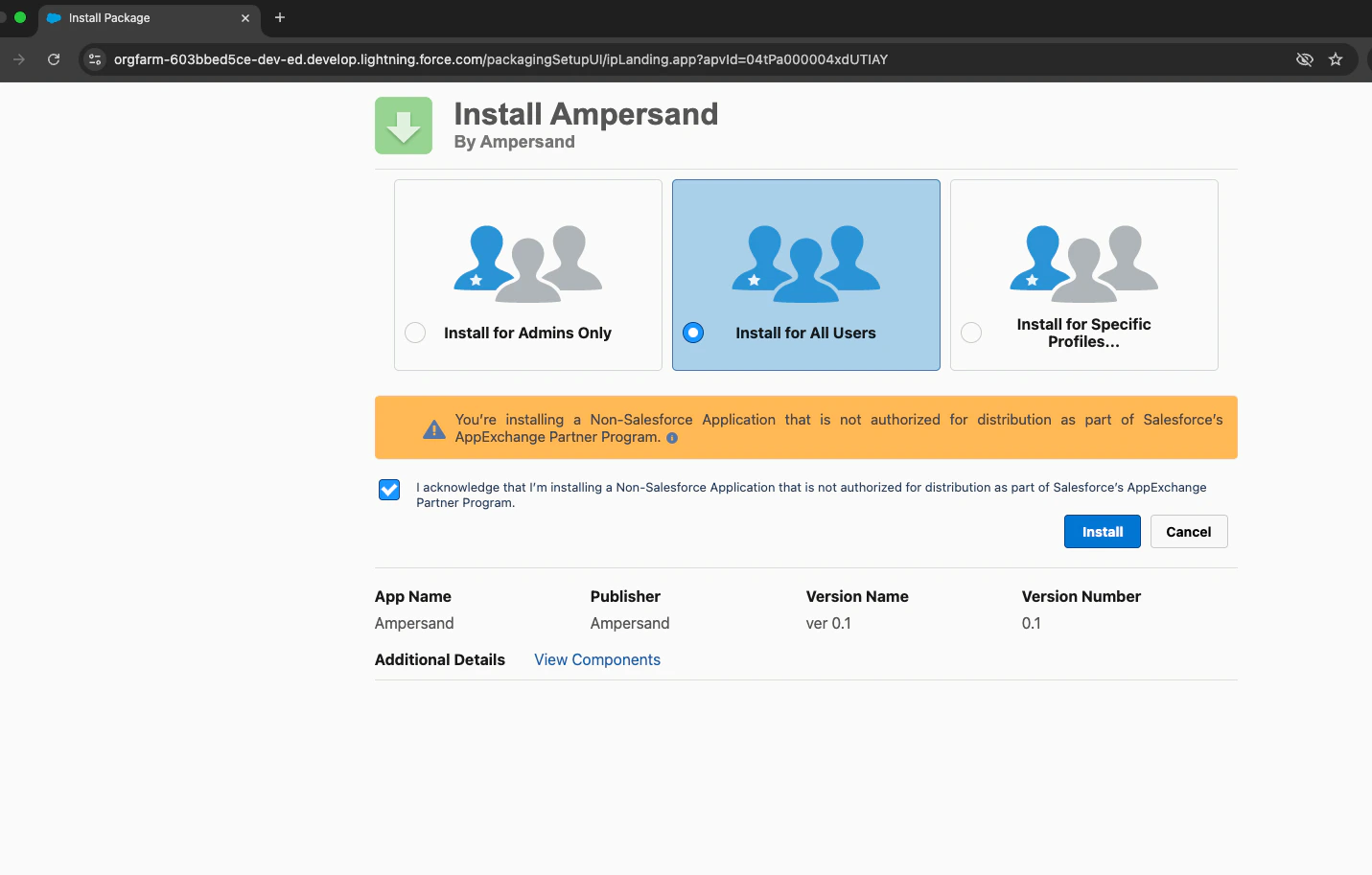
The developer will provide a package install URL. Complete this install before connecting Salesforce in the integration UI, or OAuth will fail.- Open the package install URL provided by the developer.
- Log in to your Salesforce org if prompted.
- Select Install for All Users.
- Check the acknowledgment checkbox.
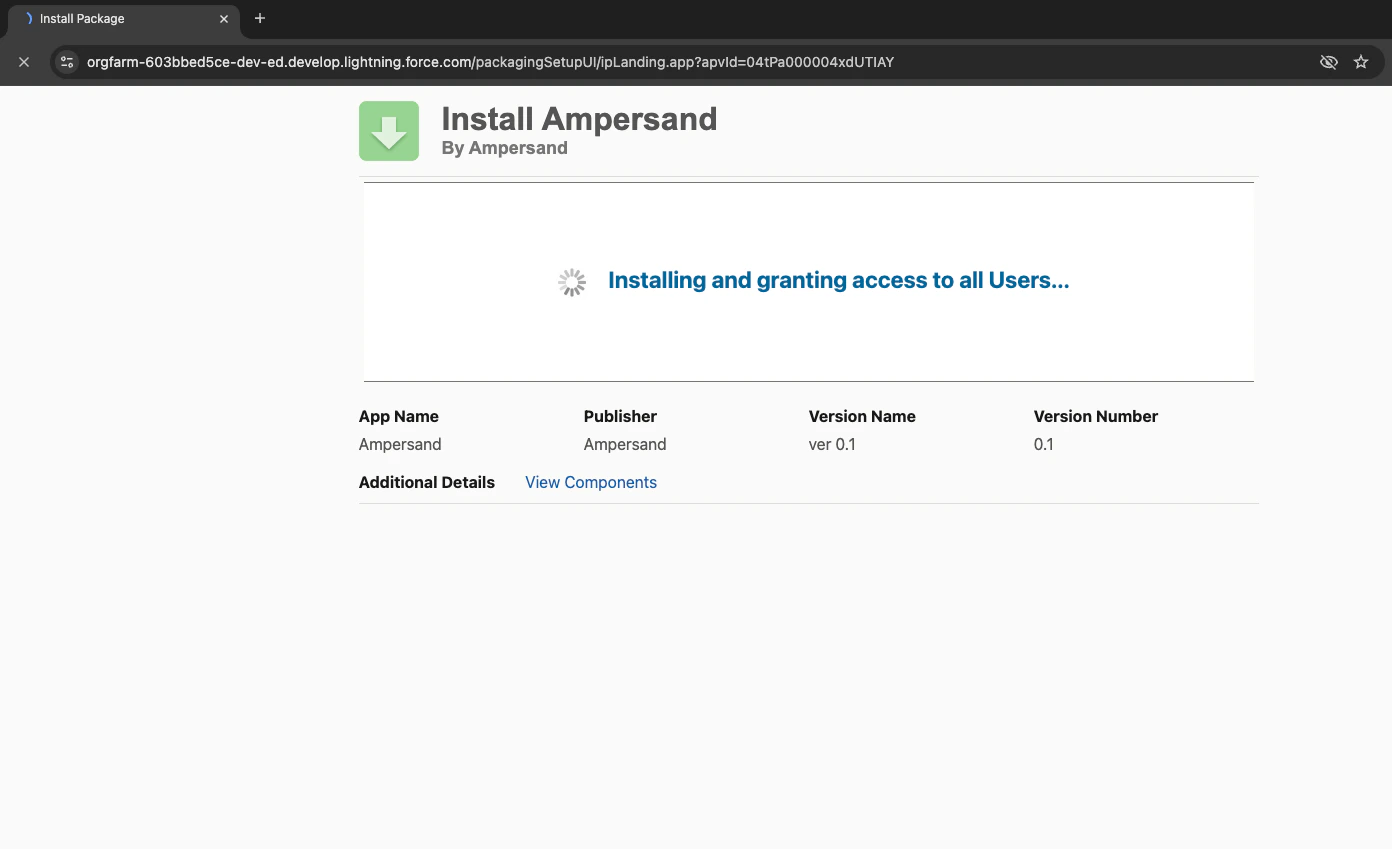
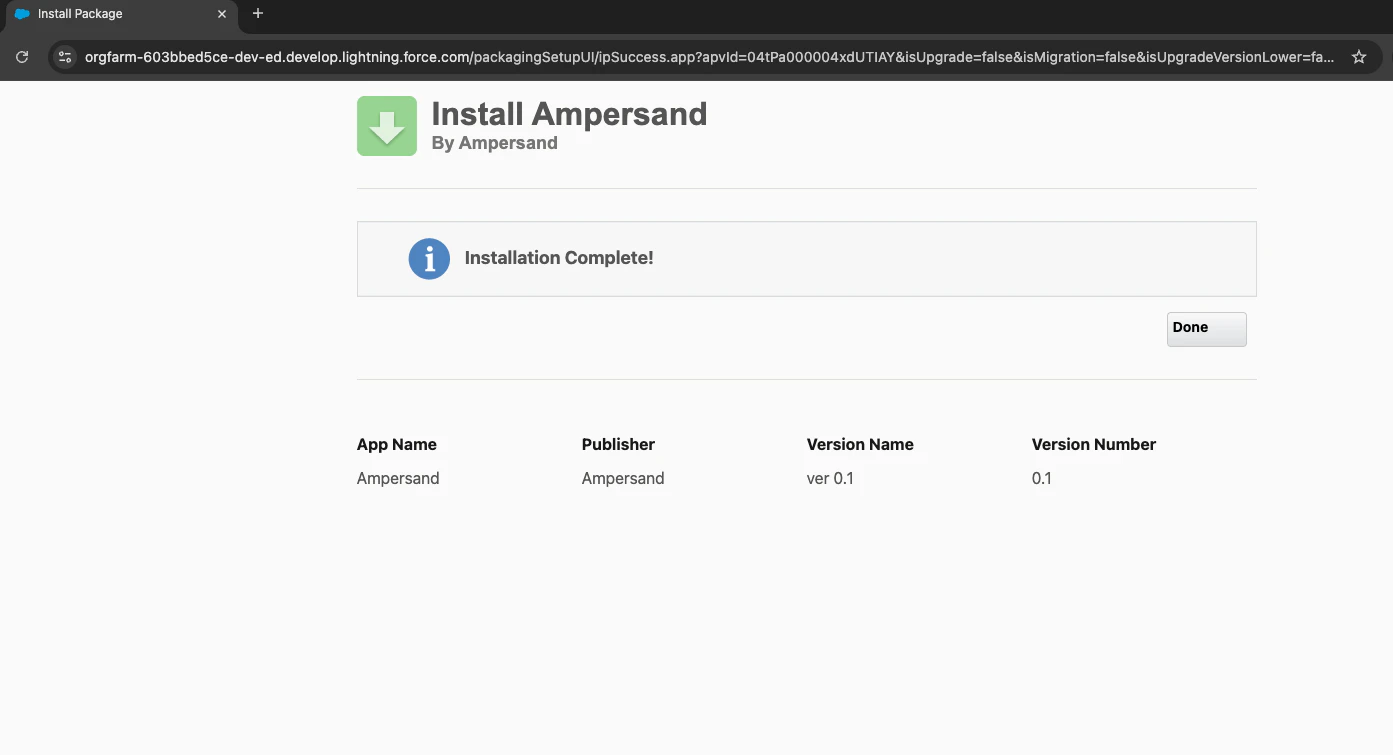
- Click Install.
Choose credentials and grant access
Pick one way to connect, then grant the permissions below.Required system permissions
The following system permissions need to be enabled on the profile or permission set you configure. The sections below provide instructions on how to enable them.- API Enabled
- If the integration includes real-time Subscribe Actions, also enable the Subscribe Action permissions
- If the integration creates or updates custom fields, also enable the custom field management permissions
- For Connected Apps only, also enable one of:
- Use Any API Client (shown if your org has API Access Control enabled)
- Approve Uninstalled Connected Apps (if you do not see Use Any API Client)
Option A: Human user
Use one of the following:- System Administrator — Already on a supported license (System Administrator is a profile on the Salesforce license). You still need to grant the correct object and field permissions; they are not always included by default.
- Sales team member or other human user — Must have the Salesforce User License. The Salesforce Platform User License is insufficient. This user can have a standard profile (such as Standard User) or a custom profile.
1. Configure system permissions
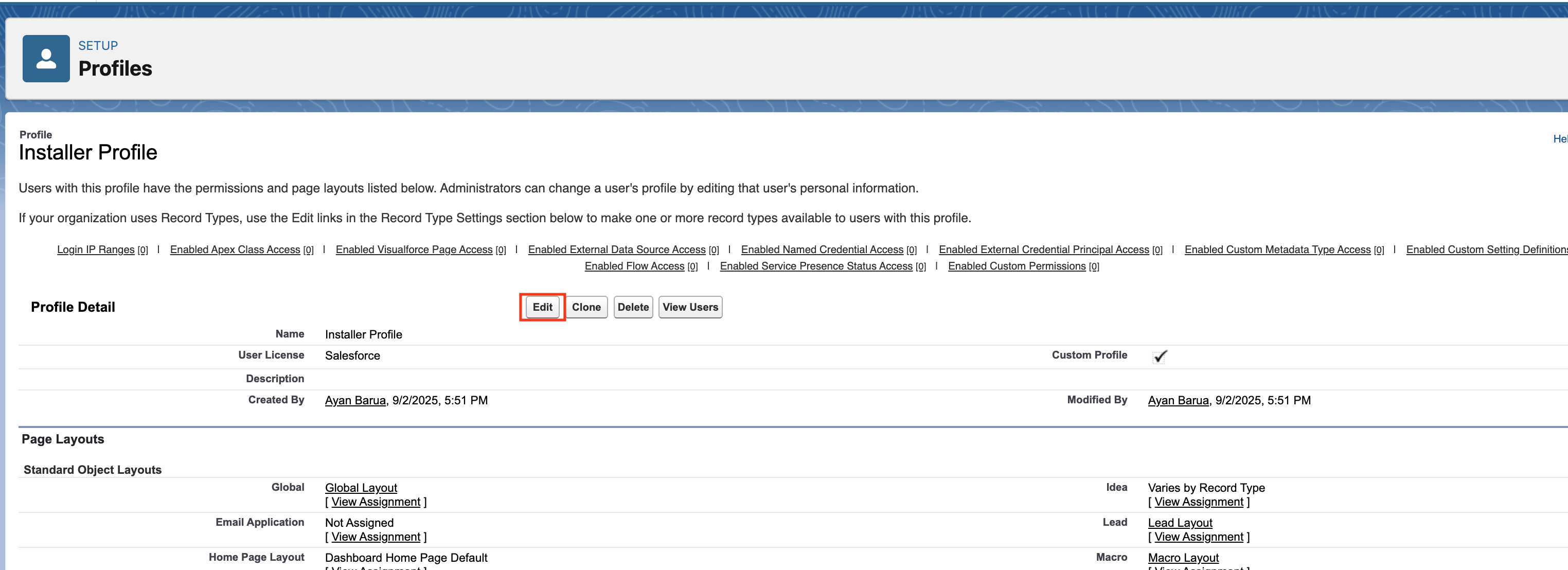
In Setup, search for Profiles in the Quick Find box and open it. Then:- Select the profile you’d like to view and edit.
- Click Edit at the top of the page.
- Ensure the checkboxes for the required system permissions are checked.
- Click Save.
2a. Field permissions for a standard profile
If the user has a standard profile (such as Standard User):- Click the gear icon in the top-right corner and select Setup.
- In the left-hand search bar, type Object Manager and open it.
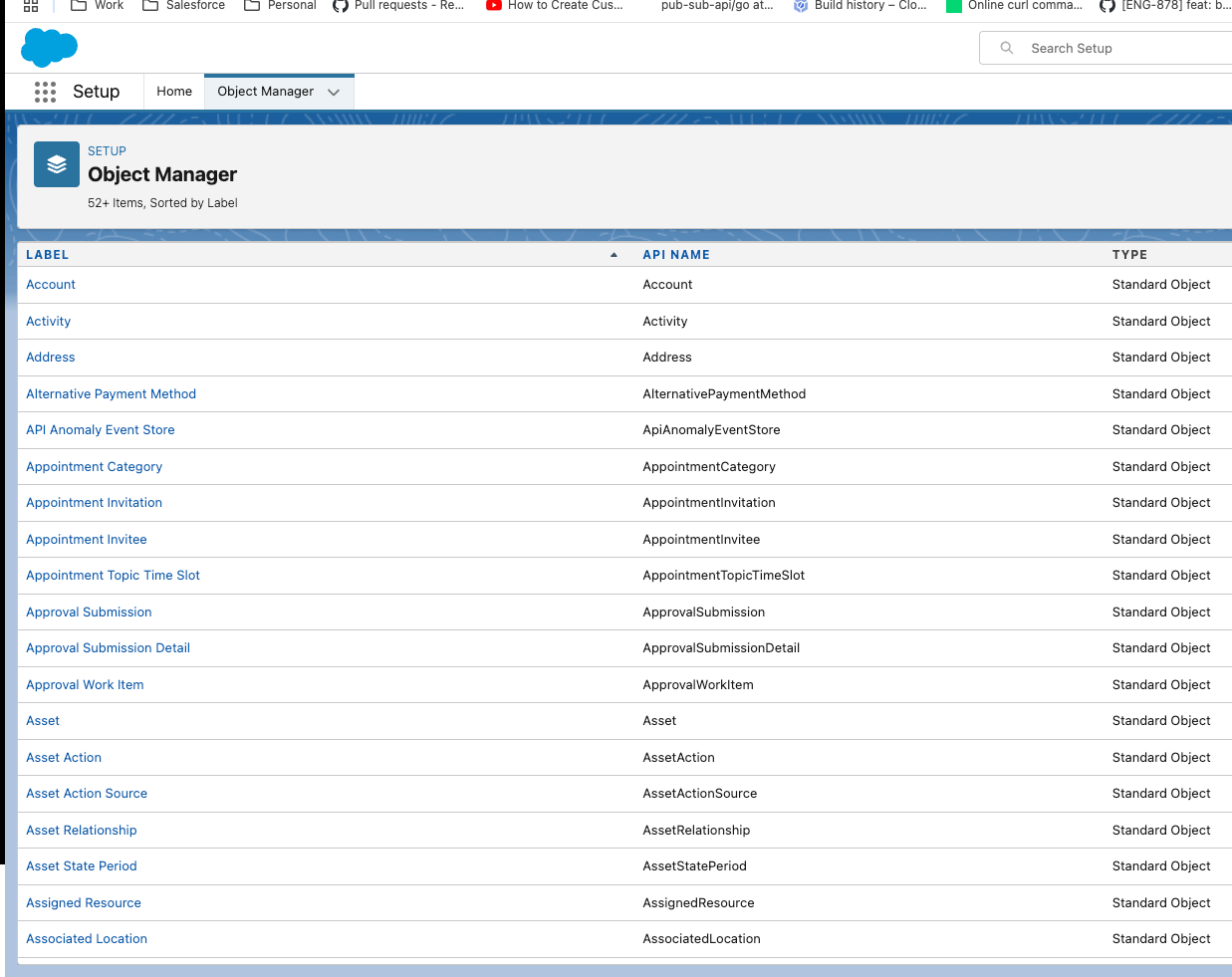
- Choose the object you need (for example, Account), then select Fields & Relationships from the left navbar.
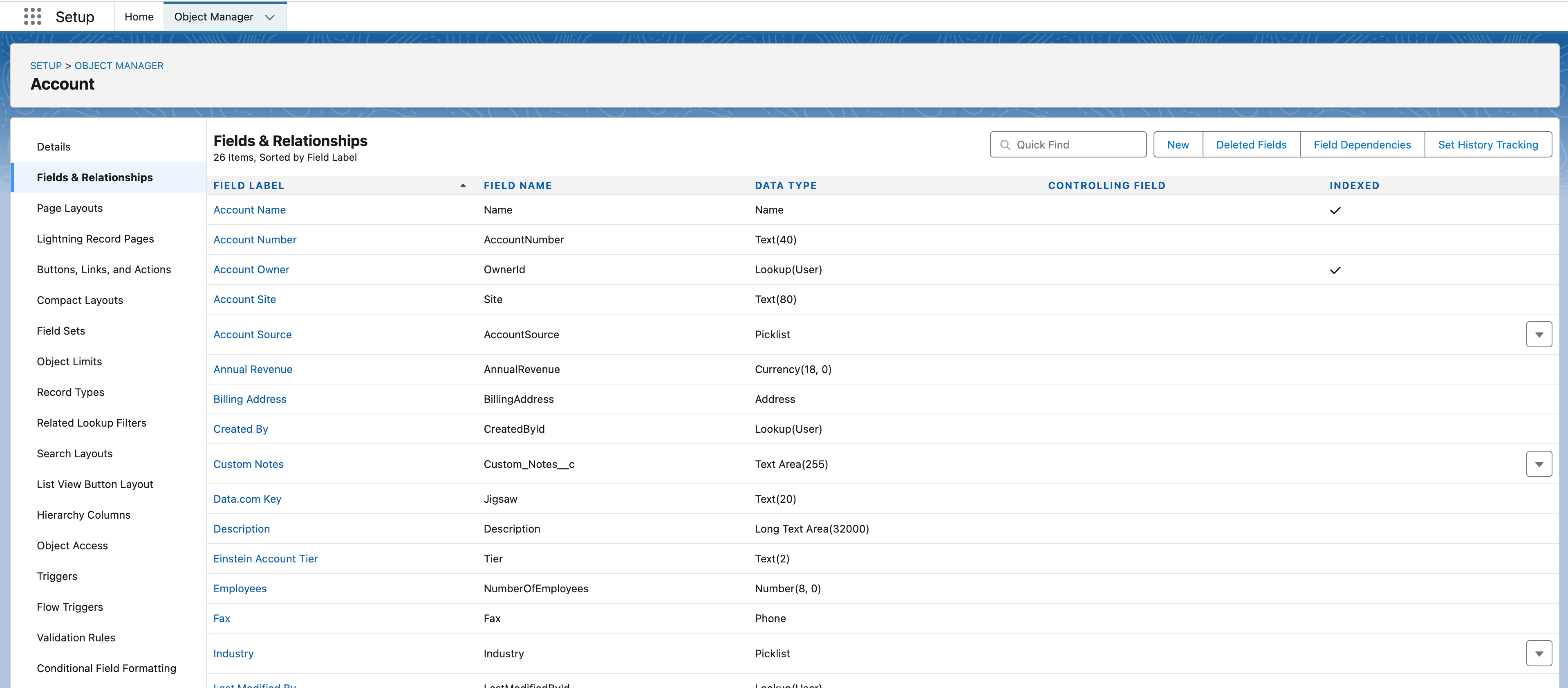
- Find the field you want to adjust and click it.
- Click Set Field-Level Security.
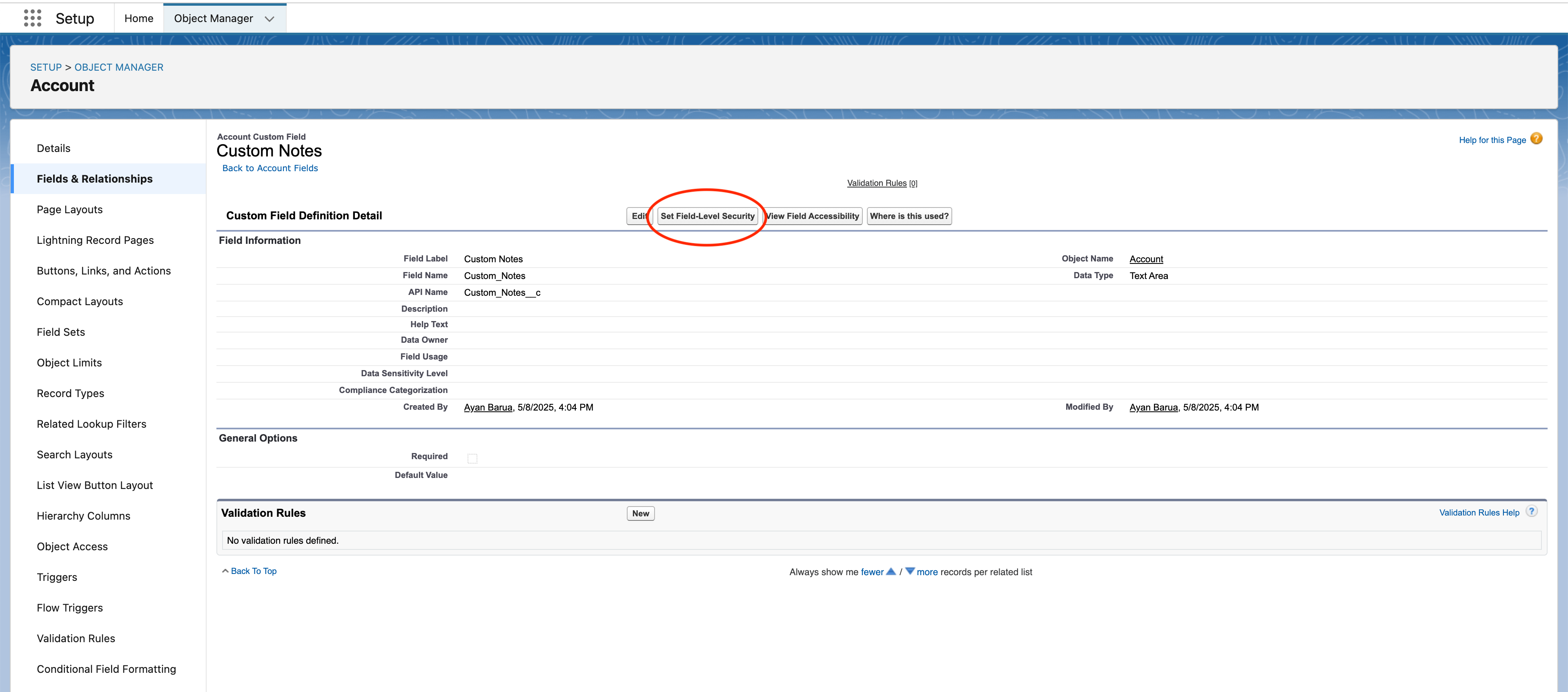
- Ensure Visible is selected for the profile. If the profile is not in the list, it does not have access to the object and that cannot be changed here.
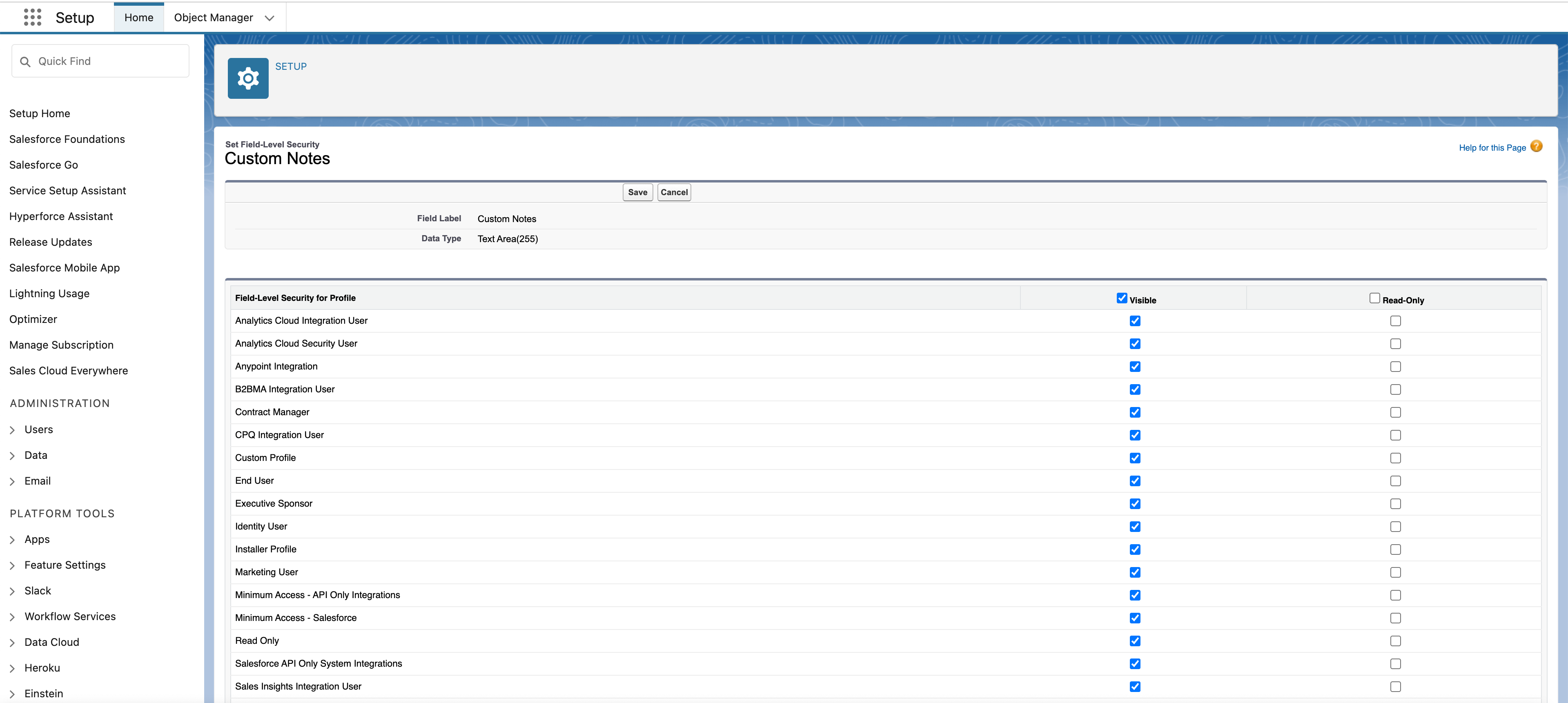
- Repeat steps 4–6 for all fields the integration needs to read, especially custom fields.
2b. Object and field permissions for a custom profile
If the user has a custom profile:- Click the gear icon in the top-right corner and select Setup.
- In the left-hand search bar, type Object Manager and open it.
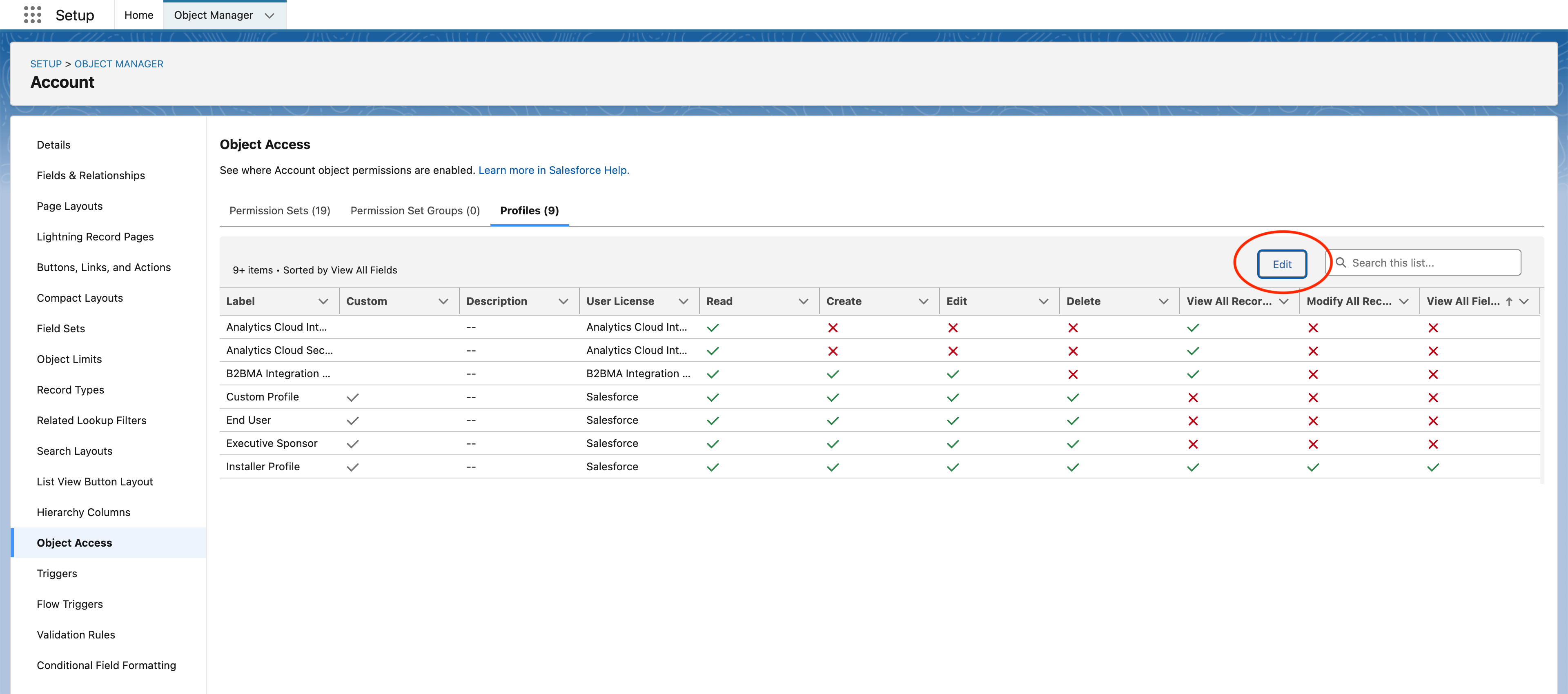
- Choose the object you need (for example, Account) and go to Object Access in the left navbar. Select the Profiles tab, click Edit, and grant the necessary permissions for your custom profile.
- If the integration needs to read data, ensure Read, View All Records, and View All Fields are checked.
- If the integration needs to write data, ensure all boxes are checked.
Option B: Salesforce Integration user
Use a Salesforce Integration user when you want an API-only identity with no Salesforce UI access. Create the user with the Salesforce Integration license (steps below).1. Create a new user
- Click the gear icon in the top-right corner and select Setup.
- In the left-hand search bar, type Users and open it.
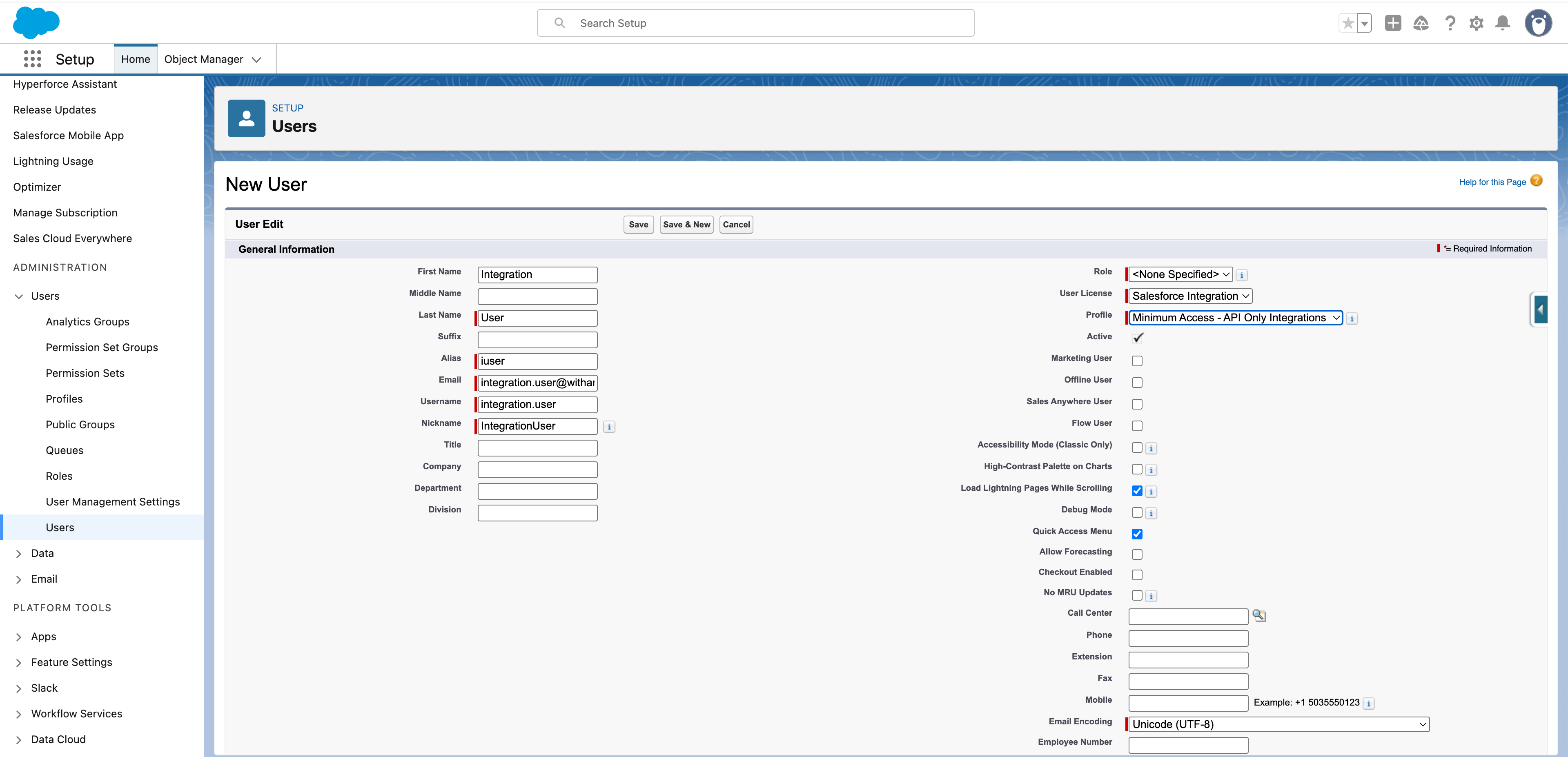
- Create a new user:
- For User License, select Salesforce Integration.
- For Profile, select Minimum Access - API Only Integrations.
2. Create a permission set
- Click the gear icon in the top-right corner and select Setup.
- In the left-hand search bar, type Permission Sets and open it.
- Click New.
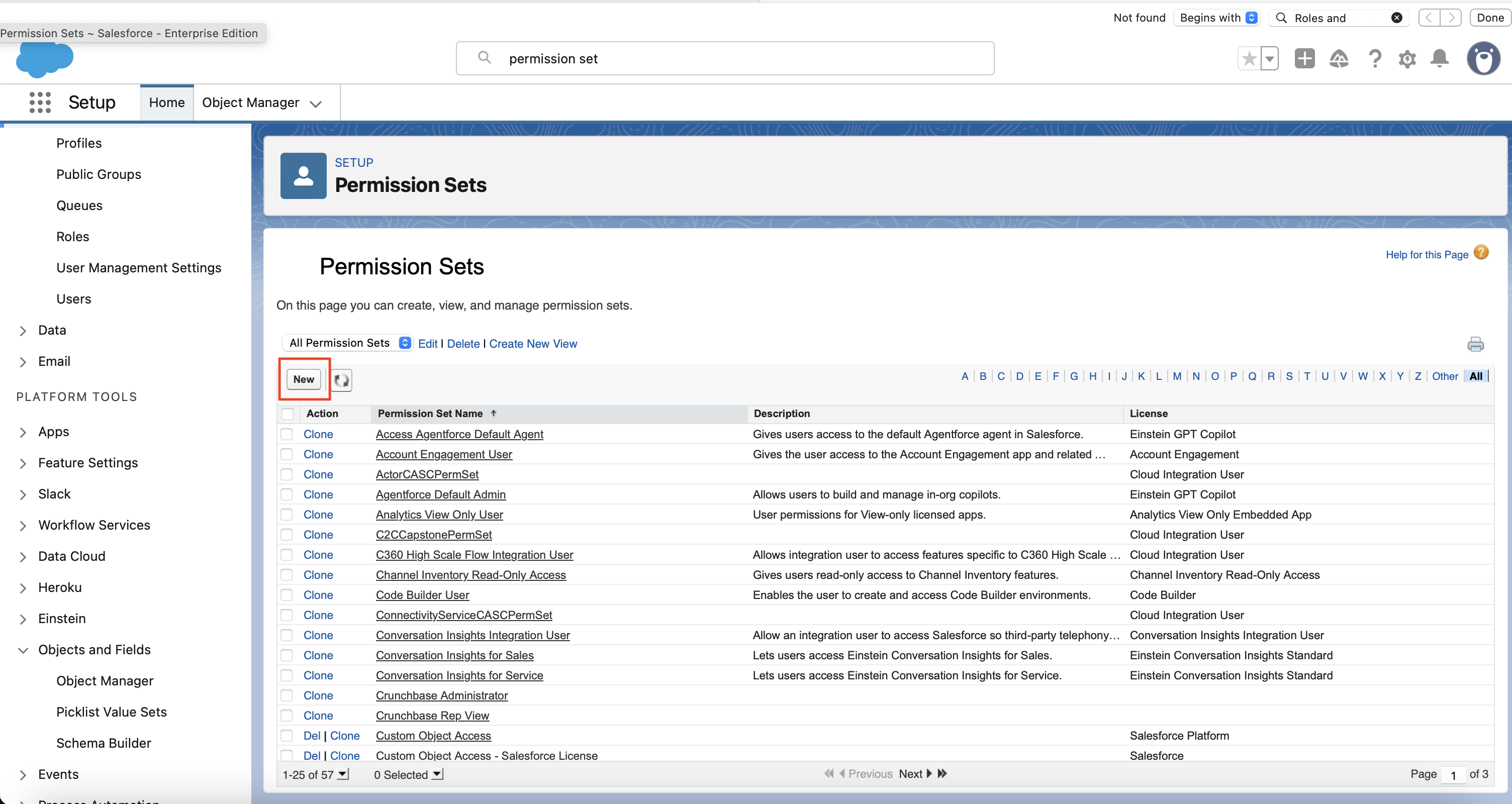
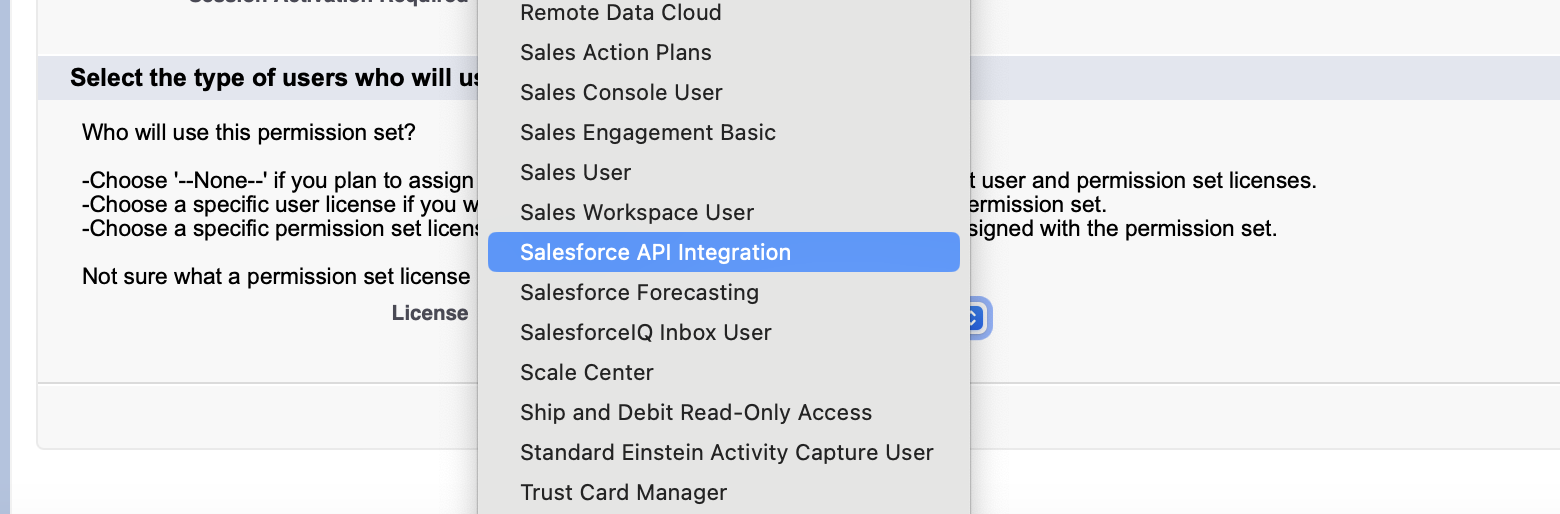
- Create the permission set:
- Name it something general (for example,
Integration User Permission Set) or describe the access (for example,Account and Contact Access). - In the License dropdown, select Salesforce API Integration.
- Name it something general (for example,
3. Configure object permissions
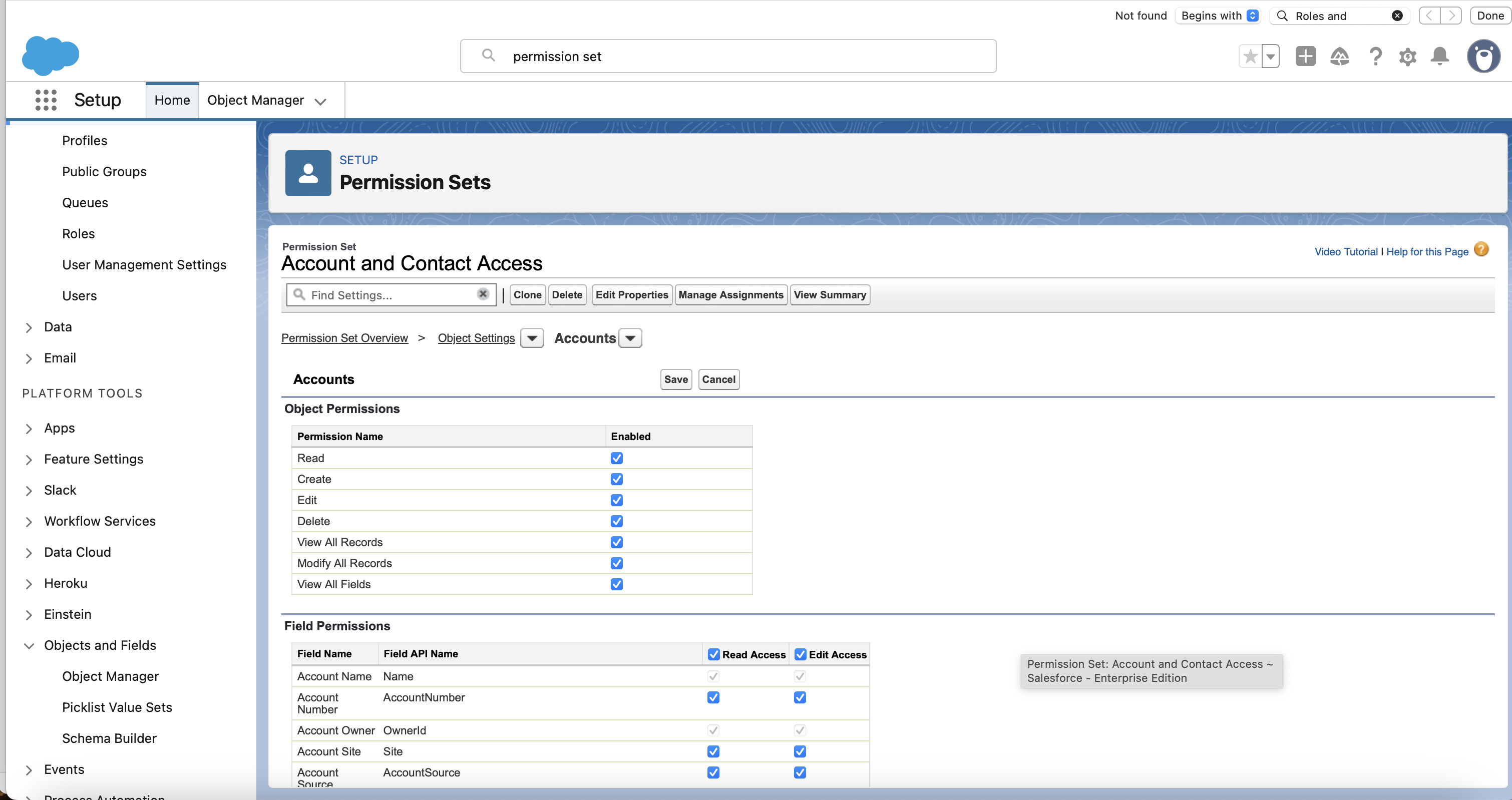
- Click Object Settings.
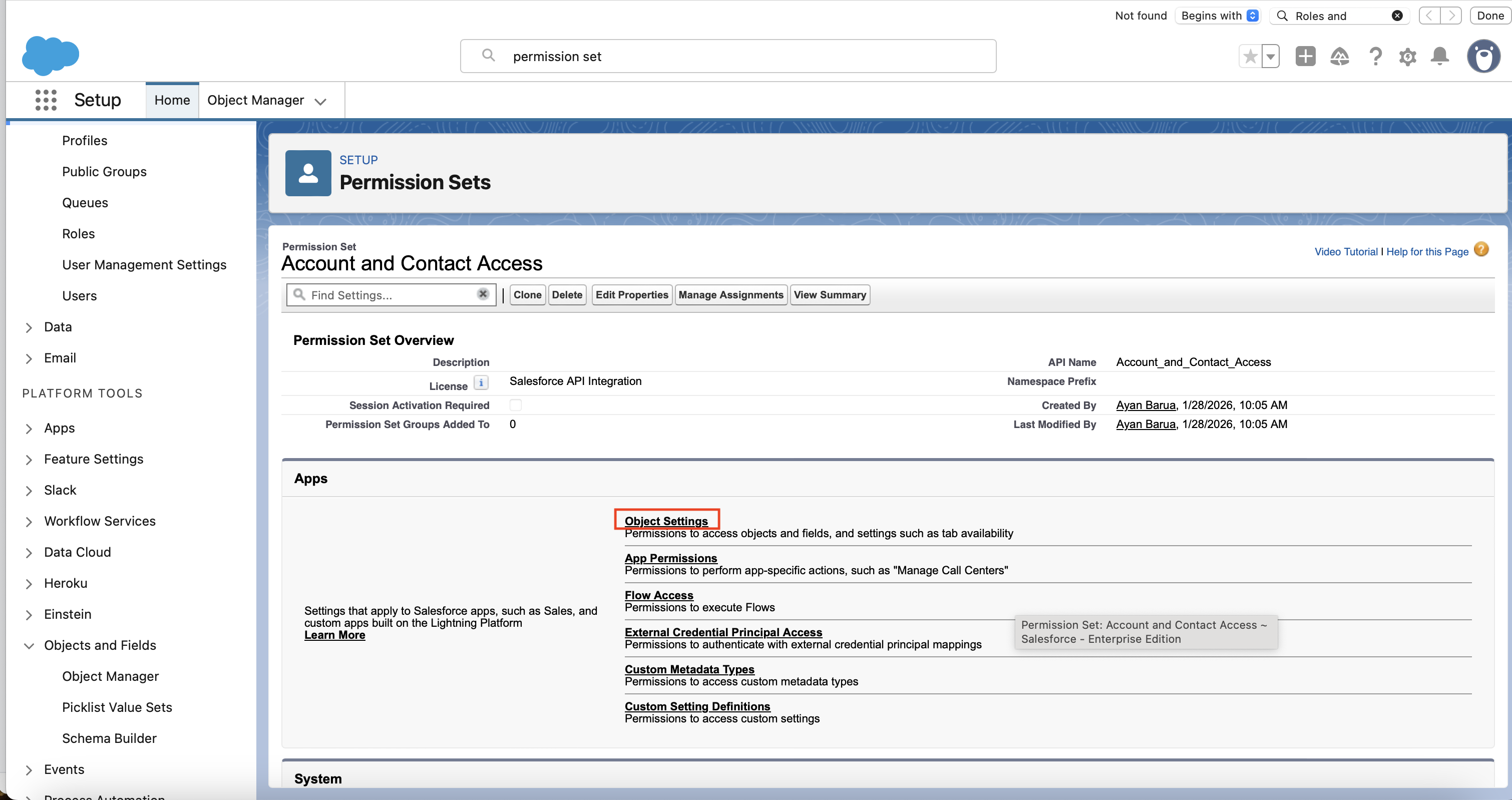
- For each object the integration needs, open it (for example, Accounts).
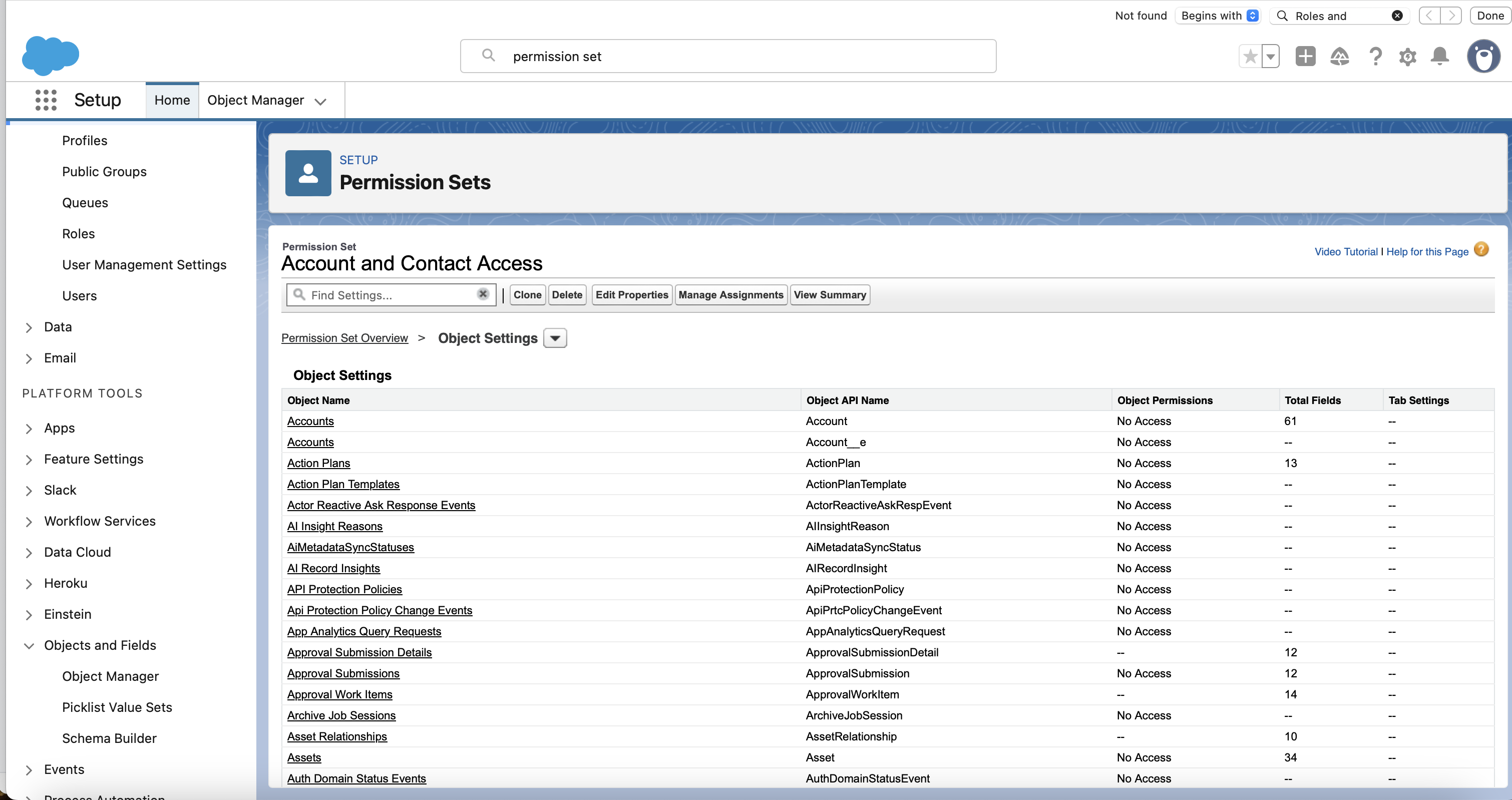
- Check the relevant boxes under Object Permissions and Field Permissions, then click Save.
- Repeat for every object the integration needs to access.
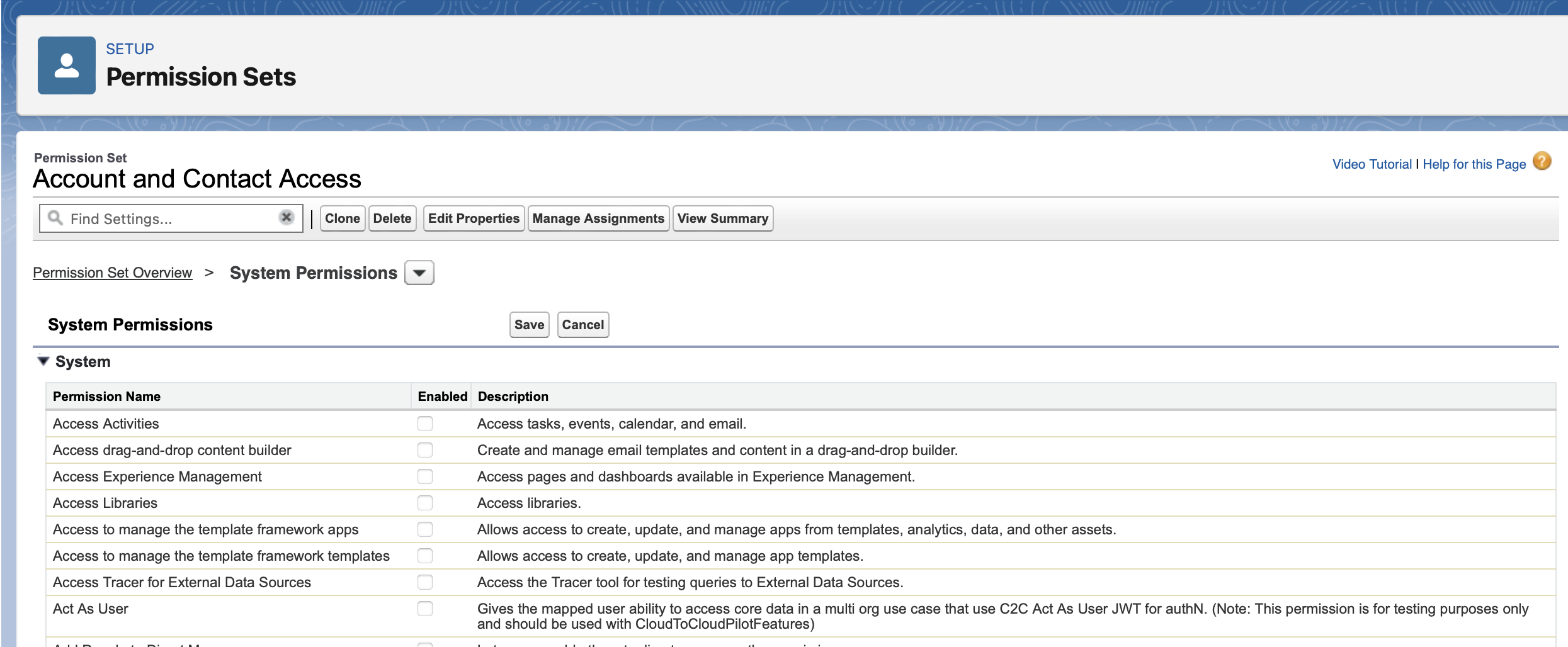
4. Configure system permissions
- Select System Permissions.
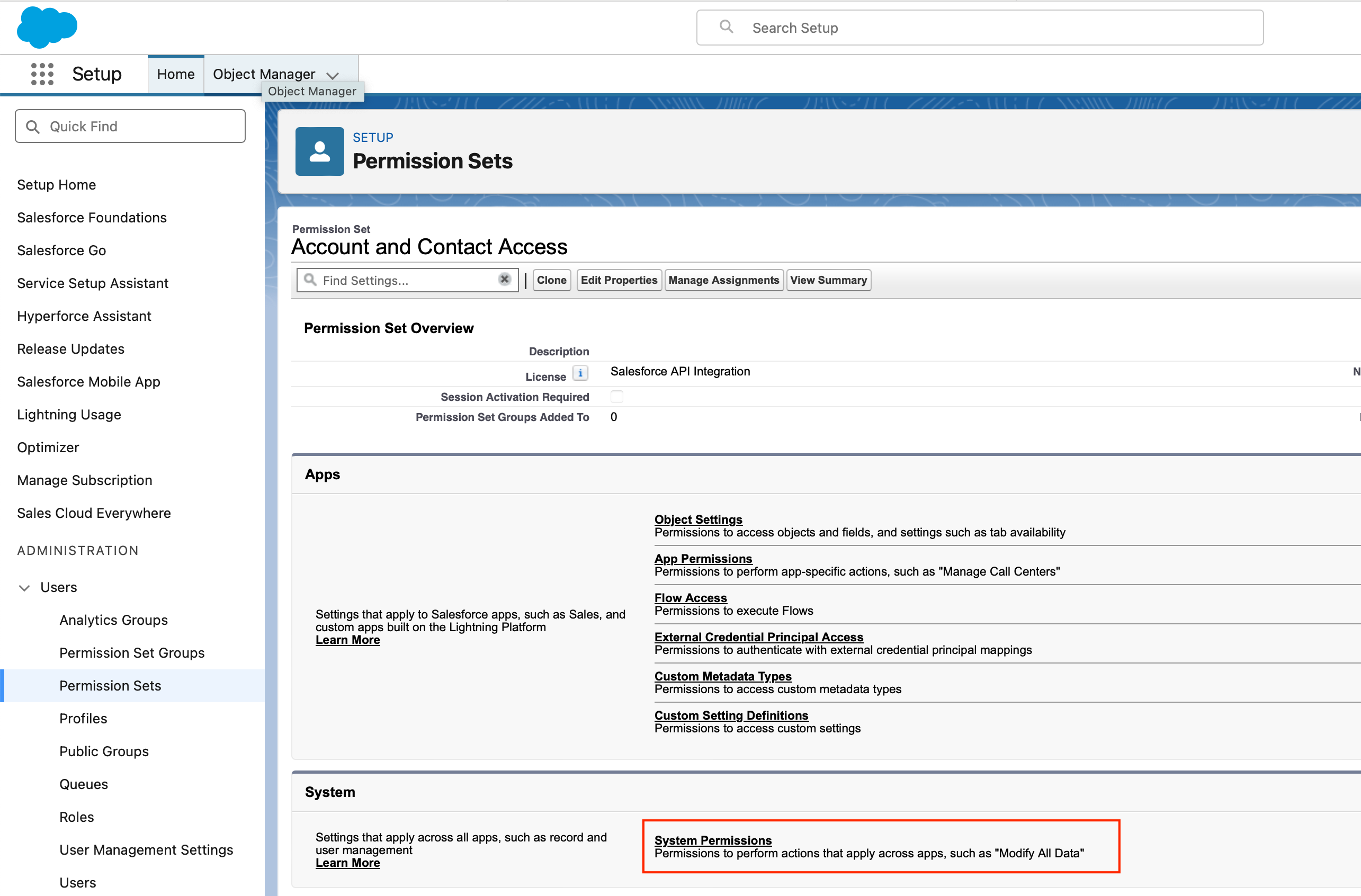
- Ensure the required system permissions are selected, then click Save.
5. Assign the permission set to the integration user
- Click Manage Assignments.
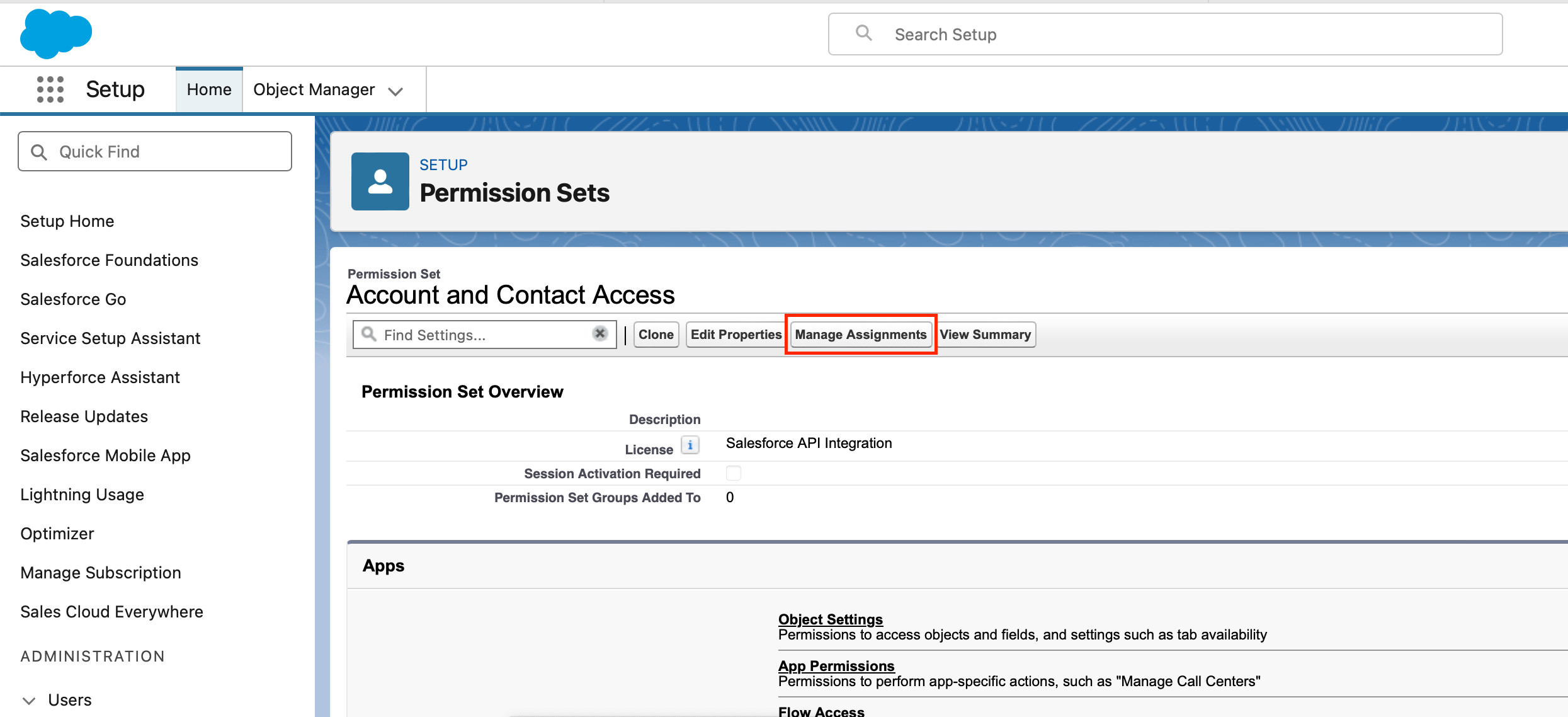
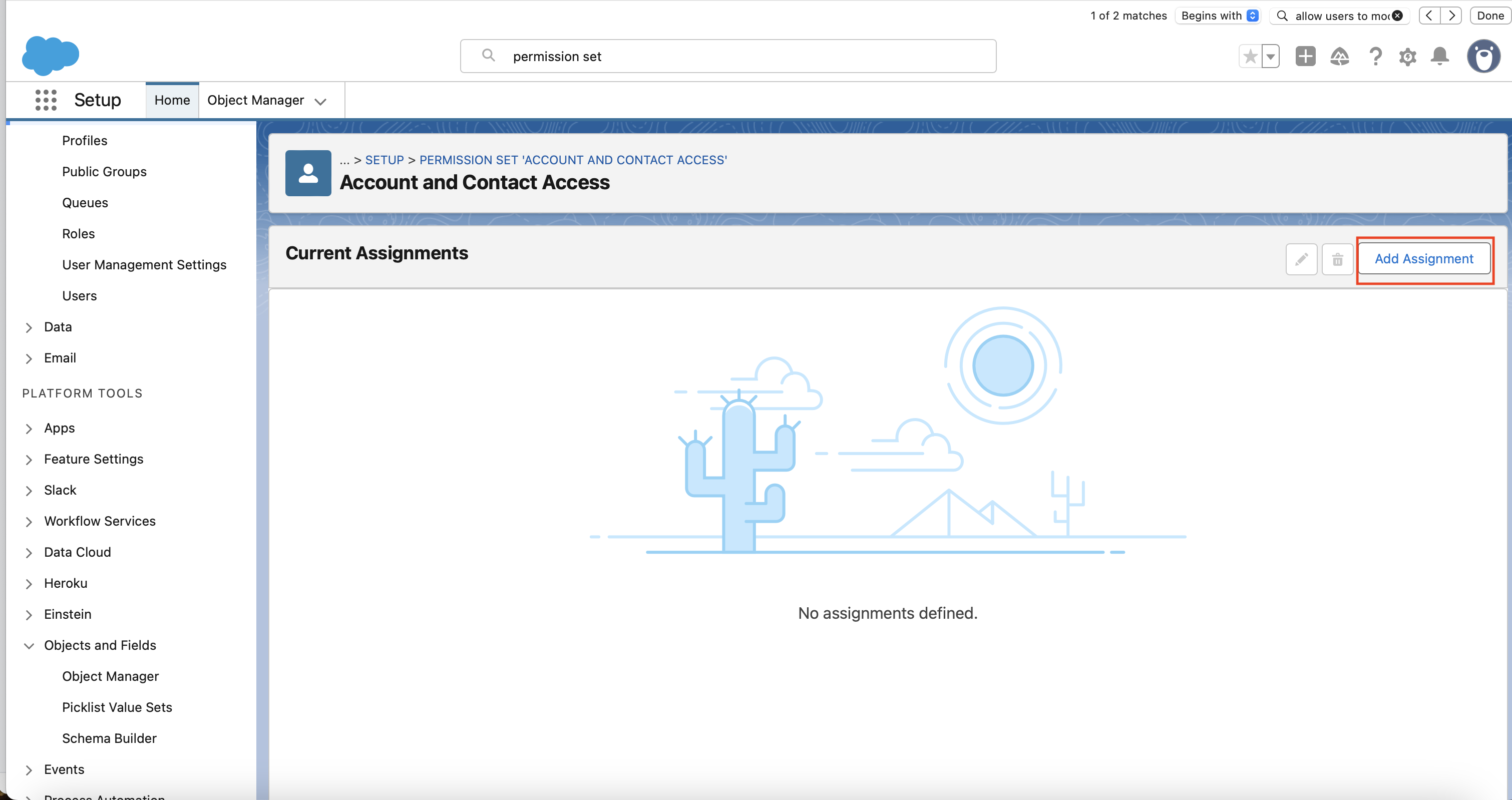
- Click Add Assignment.
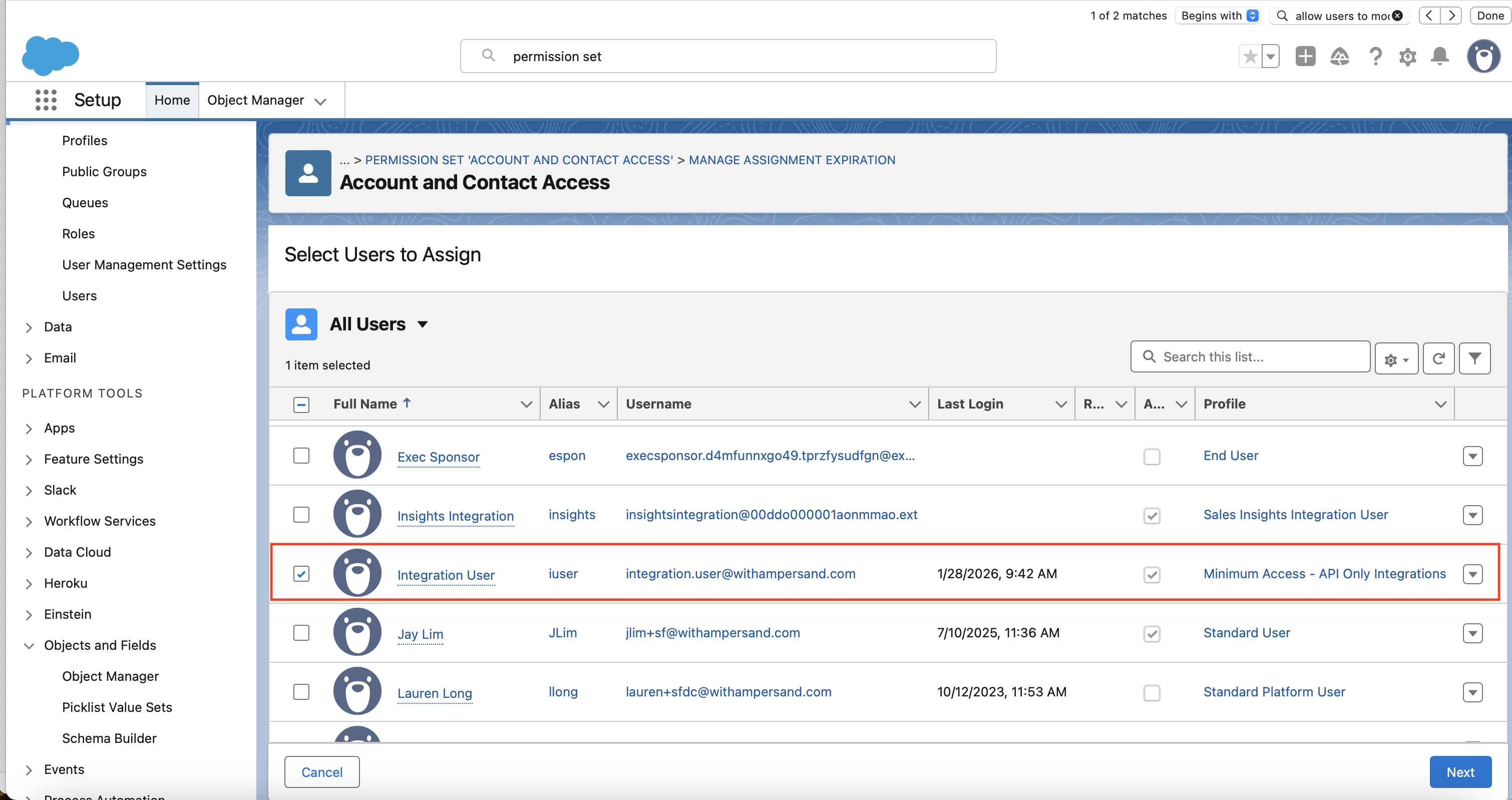
- Select the integration user you created in step 1.
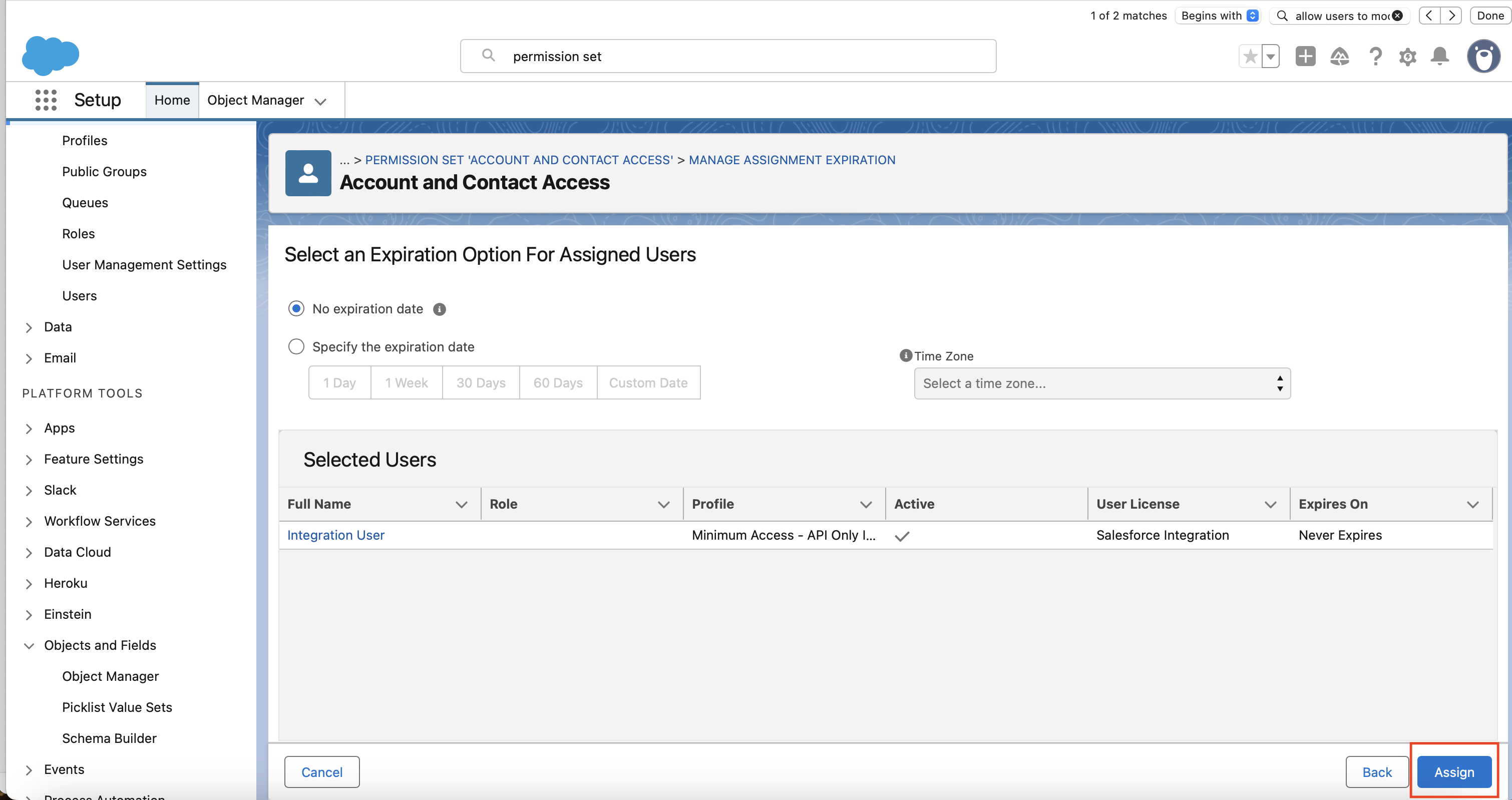
- Set Expires On to Never Expires, then click Assign.
After installing the integration
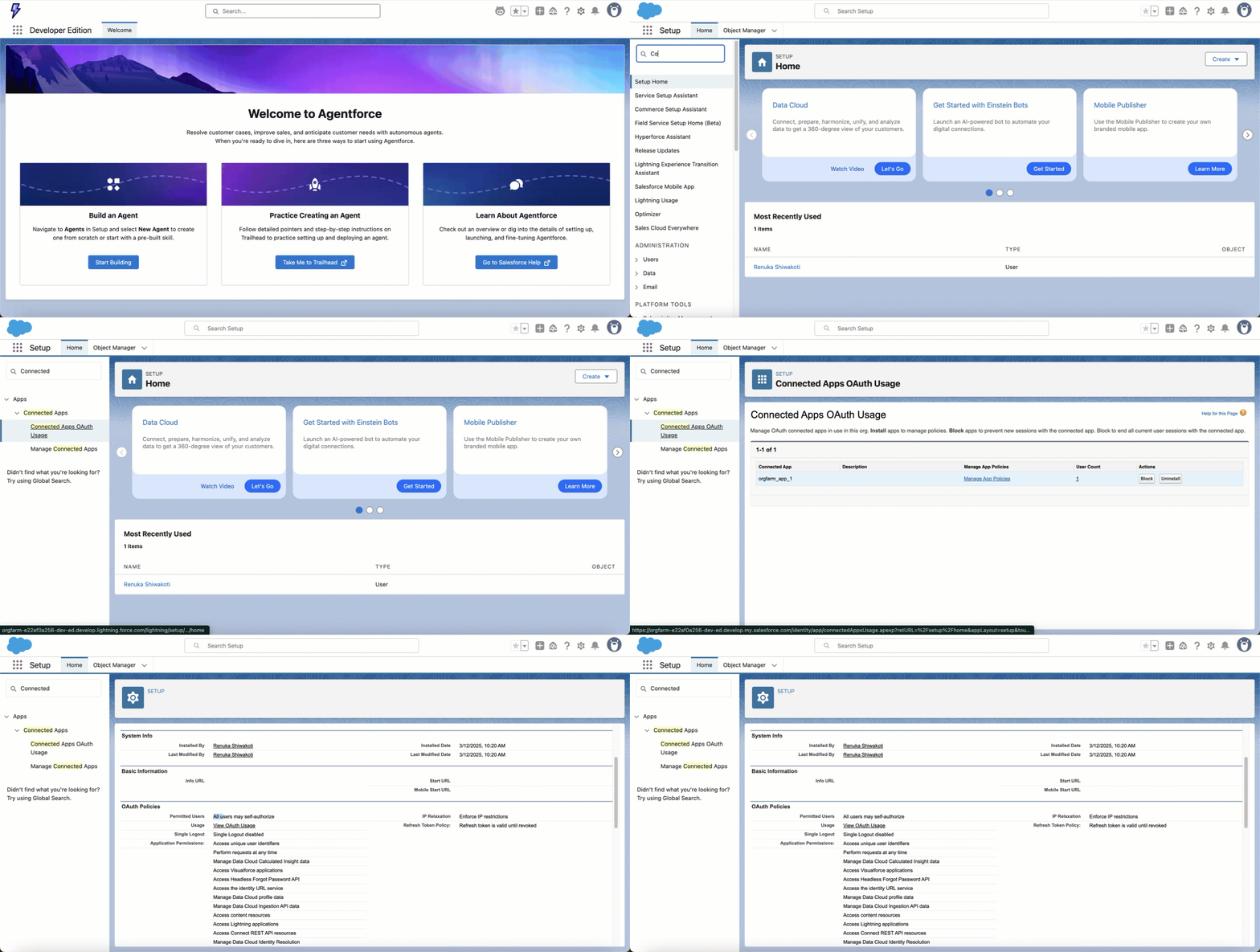
Configure OAuth policies so the integration can maintain a stable connection.- External Client App
- Connected App
- Log in to Salesforce.
- Go to Setup.
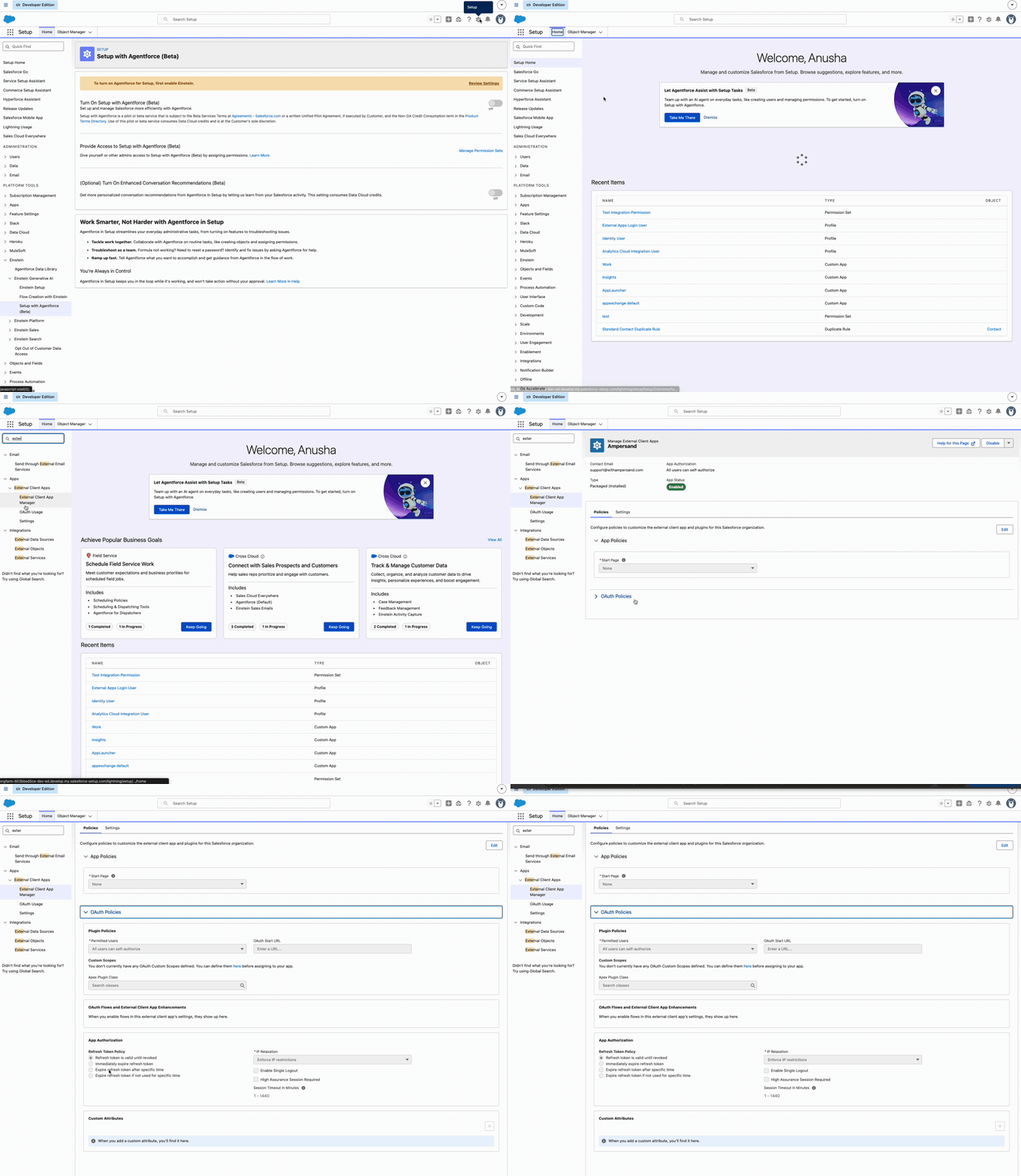
- In the Quick Find box, search for External Client App Manager.
- Click the name of the installed External Client App.
- Go to the Policies tab and click Edit.
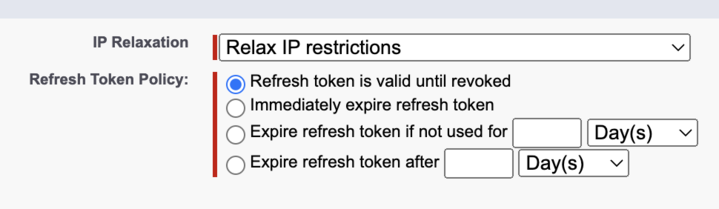
- Under OAuth Policies, set Permitted Users to All users may self-authorize.
- Under App Authorization:
- Set Refresh Token Policy to Refresh token is valid until revoked.
- Set IP Relaxation to Relax IP restrictions.
- Click Save.
Restrict API access by IP address
This section is optional. It restricts the addresses that the integration’s Salesforce user is allowed to log in from. All API requests the integration makes to your Salesforce org originate from a fixed set of Ampersand IP addresses, so you can limit that user to those addresses plus your own. Two settings are easy to mistake for this one:- IP Relaxation on the app applies to the IP address your browser connects from when you authorize the integration, not to the addresses the integration makes API calls from. Leave it set to Relax IP restrictions.
- Trusted IP Ranges under Setup → Security → Network Access are not a restriction. Logins from those addresses skip identity verification, but logins from other addresses are still allowed, so listing Ampersand’s addresses there does not block a stolen token.
Before you start
Login IP ranges are set on one profile at a time, from that profile’s detail page. If you do not see a Login IP Ranges section, check that you opened a profile rather than the profile list, and that your edition sets the ranges on profiles rather than on the Session Settings page (see the note at the end of this section). You need the Manage Profiles and Permission Sets permission to add or edit login IP ranges, and View Setup and Configuration to view them. Two things determine whether this works:- Whose profile you restrict. You choose which profile to put the ranges on, and every user on that profile is then restricted by them. It has to be the profile of whoever authorizes the integration, so if that person is on a shared profile such as System Administrator, everyone else on that profile is restricted too. Create a user for the integration and give it a profile of its own.
- Which addresses you allow. The list must include Ampersand’s addresses and the addresses that same user signs in from in a browser. Authorization happens in a browser, so if their own address is missing they cannot log in to connect or reconnect the integration.
Step 1: Add the allowed IP ranges to the profile
- Log in to Salesforce.
- Go to Setup.
- In the Quick Find box, search for Profiles and open the profile list.
- Click the name of the profile belonging to the user who authorizes the integration. Do not click Edit next to it; login IP ranges are not on the edit page, only on the profile’s detail page.
- Find Login IP Ranges on that detail page:
- In the original profile interface, scroll to the bottom of the page to the Login IP Ranges related list and click New.
- If your org has the enhanced profile user interface enabled, click Login IP Ranges in the list of links near the top of the page, then click Add IP Ranges.
- Add one entry for each address listed in Ampersand’s outgoing IP addresses. A single address is entered as a range, so put the same address in both Start IP Address and End IP Address, and give each entry a description such as
Ampersandso it is recognizable later. - Add one more entry for the range your own users sign in from, so the person who authorizes the integration is not locked out.
- Click Save.
Step 2: Verify the integration still works
- Reconnect the integration from your vendor’s app.
- Confirm that data still syncs in both directions.
Subscribe Action permissions
If the integration includes Subscribe Actions, enable these permissions. Explicitly enable:- API Enabled - allows the integration to make API calls
- Modify Metadata Through Metadata API Functions — configure event channels and memberships through Metadata API
- Customize Application — configure artifacts like Named Credentials so Ampersand can connect to event channels securely
- View Setup and Configuration — access setup configuration to create webhook subscription settings
- View Roles and Role Hierarchy — correct visibility context so Salesforce can deliver events (without this, events may be generated but not delivered)
- Manage Custom Permissions — create and manage dedicated event channels and channel memberships for the installation
Custom field management permissions
If the integration creates or updates custom fields in your Salesforce instance, you will need to enable the following permissions:- API Enabled - allows the integration to make API calls
- Modify Metadata Through Metadata API Functions — allows the integration to call the Metadata API in order to modify custom fields
- Customize Application — allows the creation and update of custom fields
- Manage Profiles and Permission Sets - allows a new permission set to be created to give the current user permission to read from and write to the field
- Assign Permission Sets - allows the integration to assign the new permission set to the current user